
Follower Counter for X is an app for LaMetric smart devices that displays your X (formerly Twitter) follower count.
The app offers two modes:
Manual Mode (Free): Enter your follower count manually. No license or X account connection is required.
Automatic Mode (License Required): Connect your X account to automatically update your follower count and receive follower growth notifications.
Automatic Mode requires a dedicated Follower Counter for X License, valid for 365 days from the purchase date.
Each license works with one LaMetric device. If you own multiple devices, you'll need a separate license for each one.
This guide explains how to purchase, activate, restore, renew, and troubleshoot your Follower Counter for X License.
1. How to Purchase and Activate Your License
Step 1: Open the License settings
Open the LaMetric companion app on your smartphone.
Select the Follower Counter app installed on your LaMetric device.
Open the app's Settings.
Go to License.
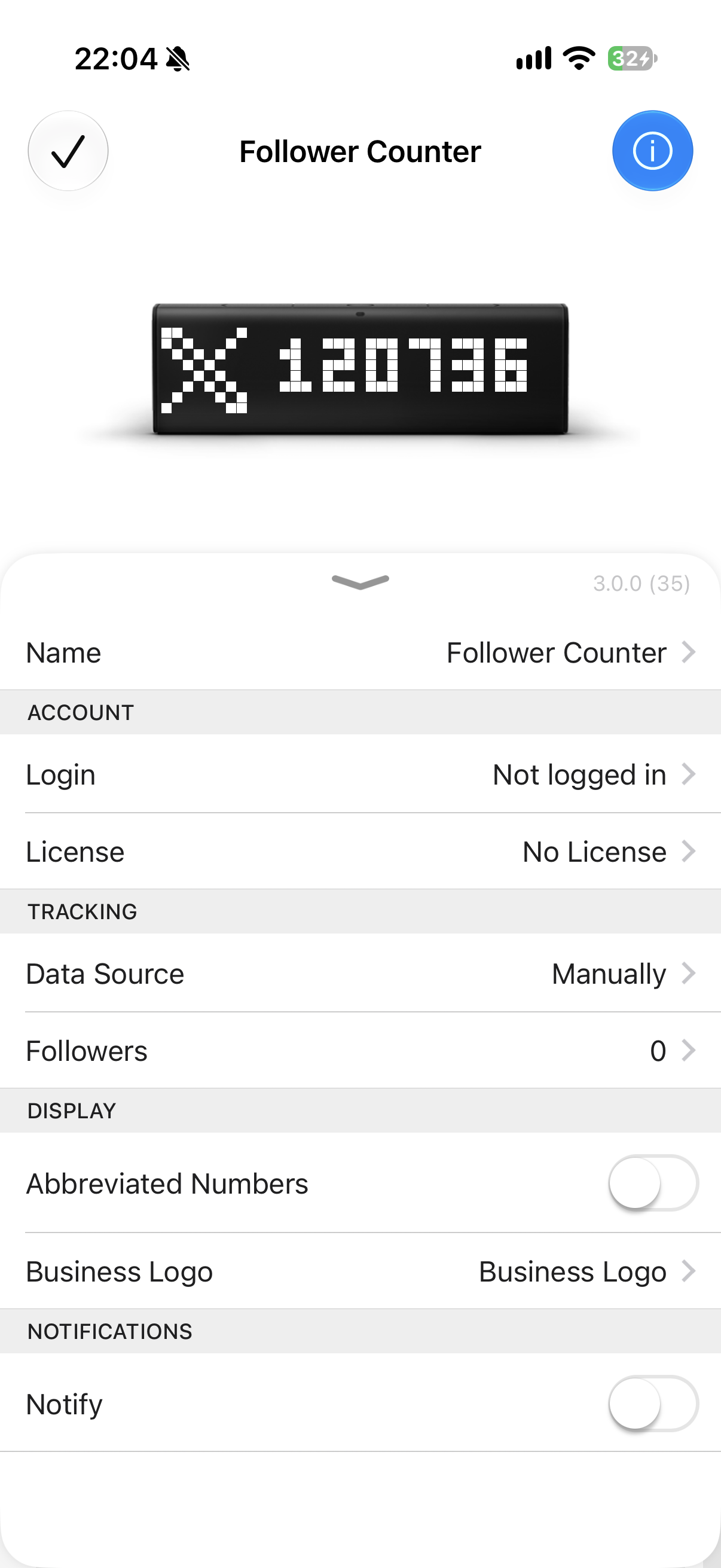
Follower Counter settings showing the License option
If you don't have a license yet, select Buy a License.
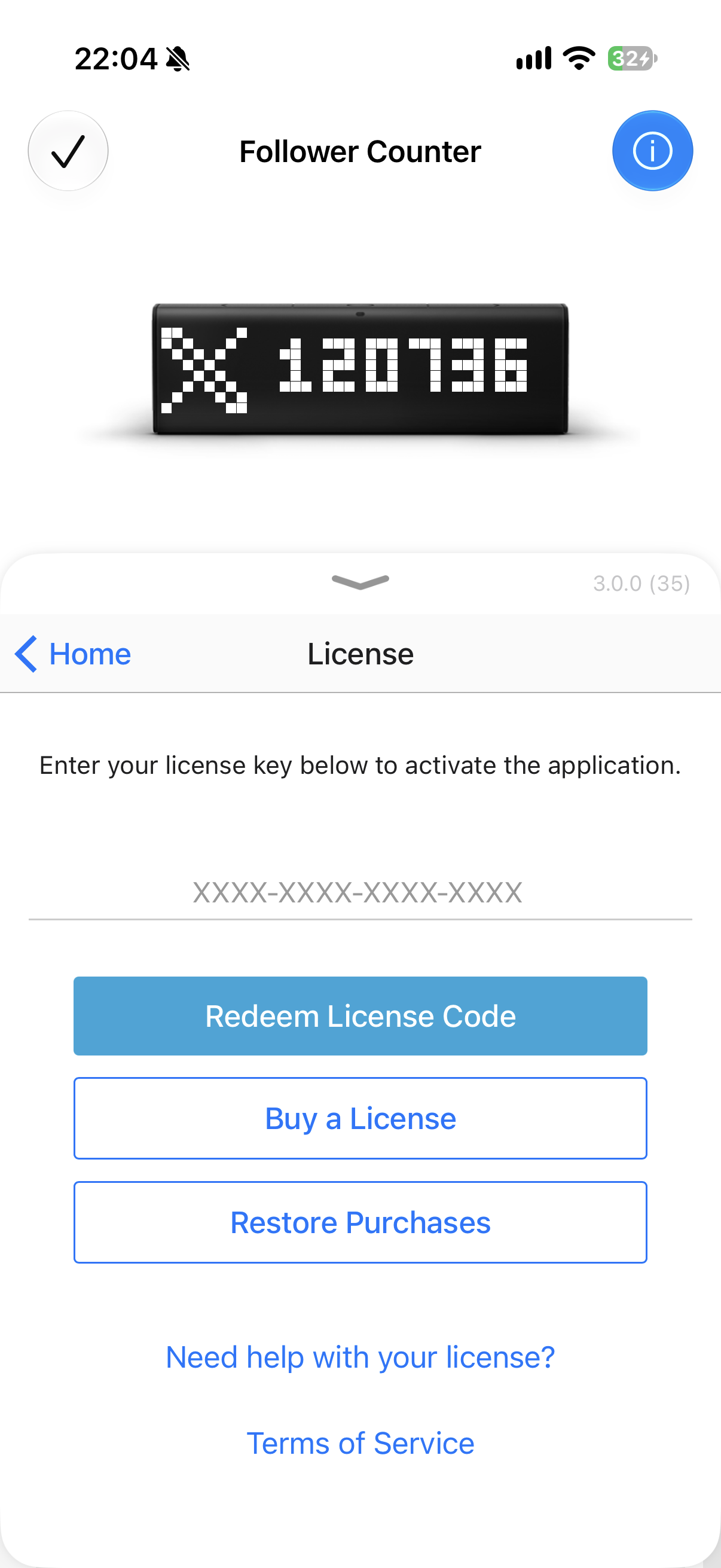
License settings showing the Buy a License button
You'll be redirected to the LaMetric online store to complete your purchase.
Step 2: Purchase your Follower Counter for X License
Follow the instructions in the LaMetric online store to purchase your license.
Make sure to provide a valid email address that you can access, as your license code will be delivered to this address.
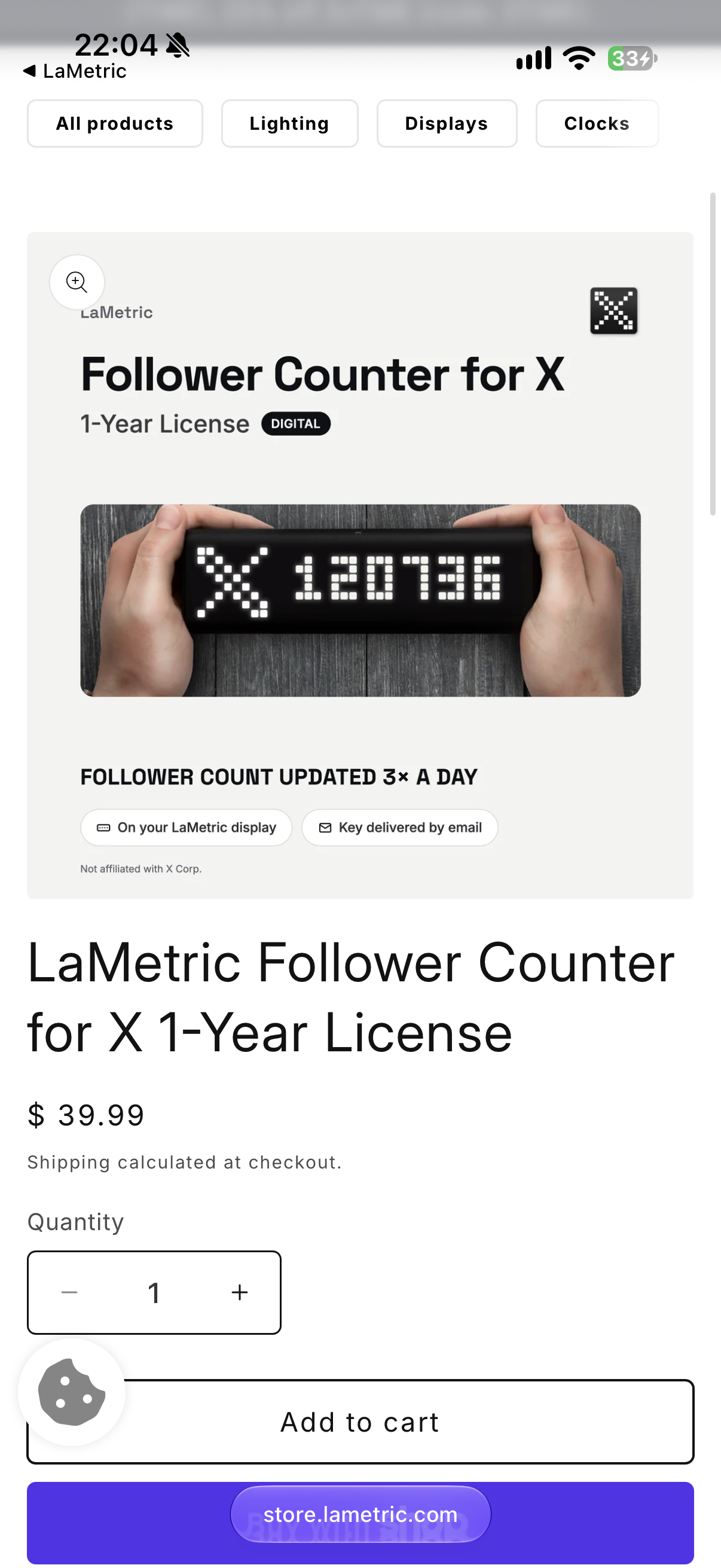
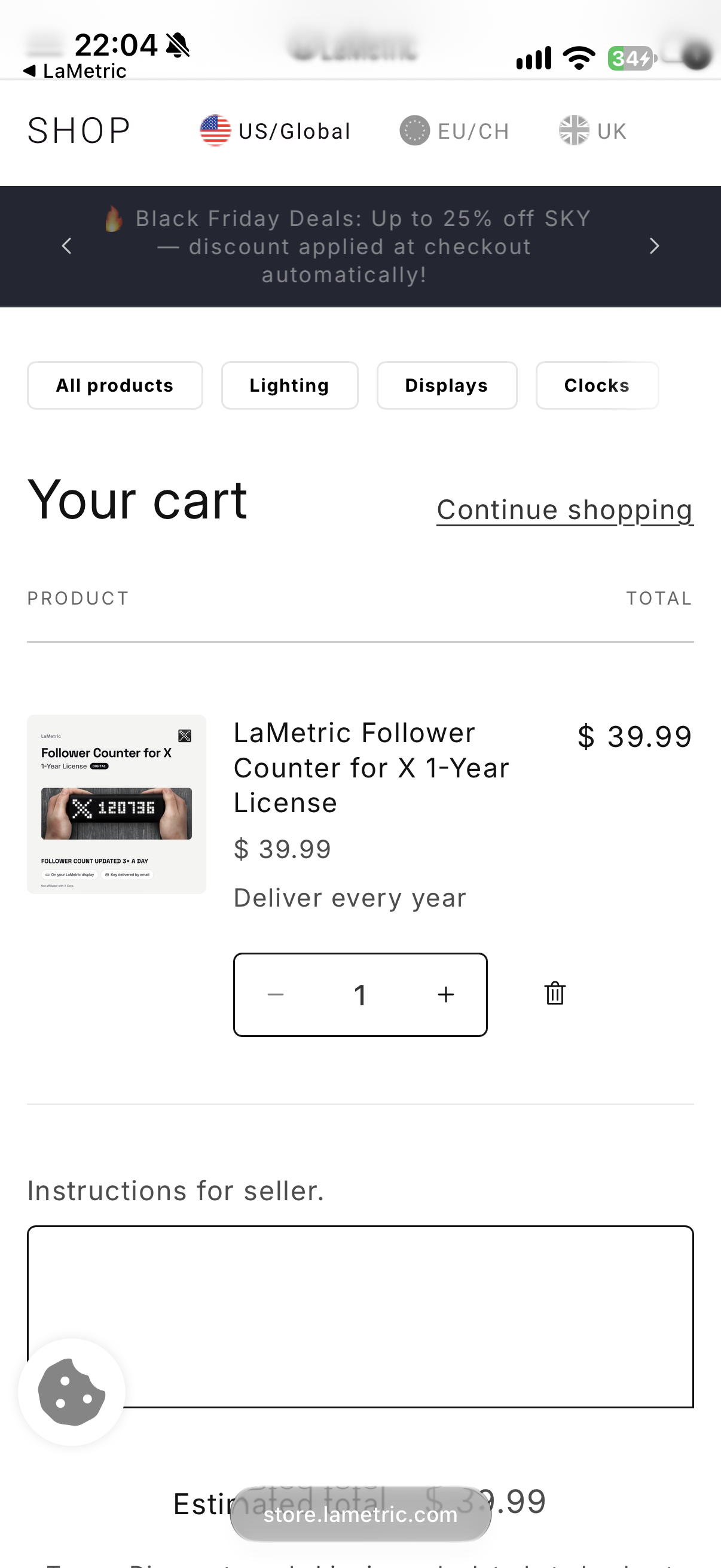
Follower Counter for X License product page in the LaMetric online store
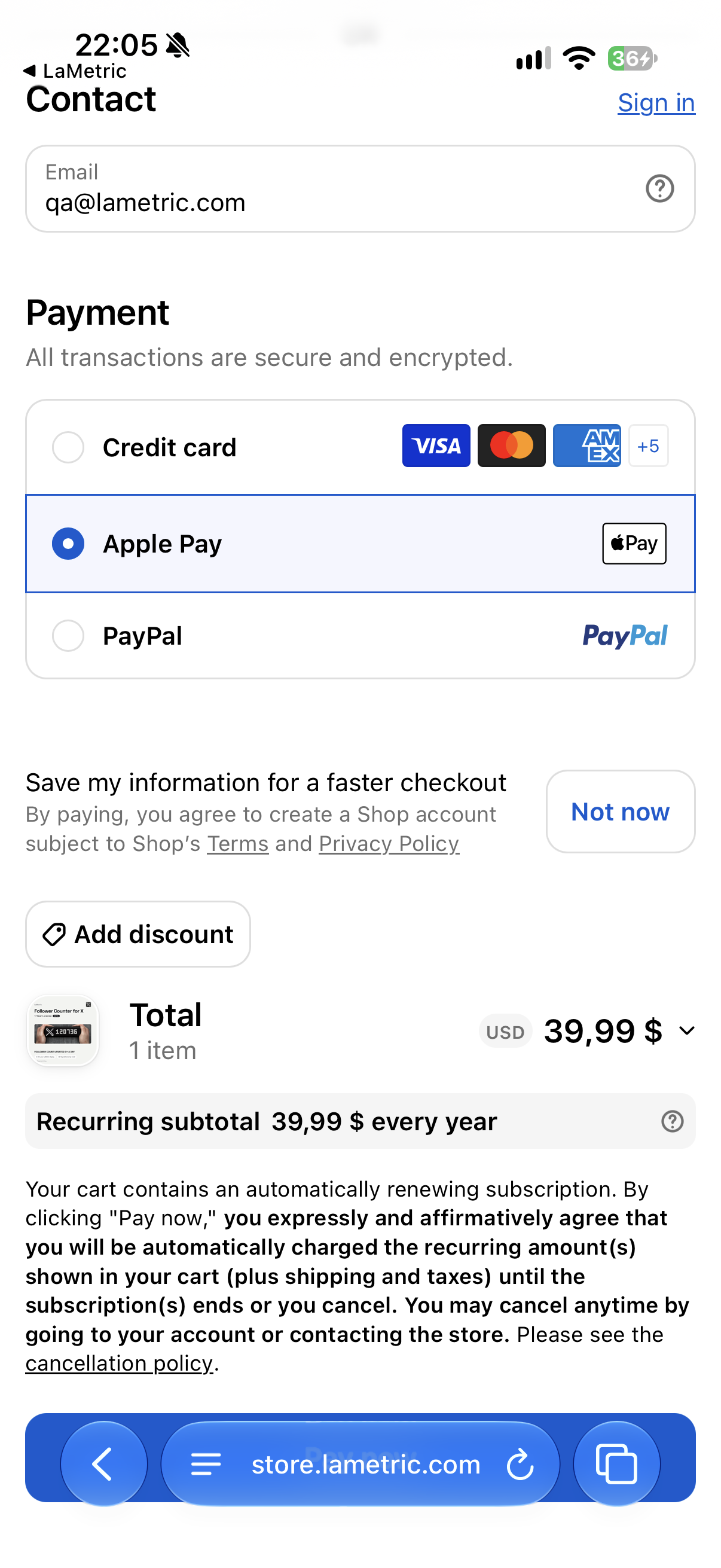
Checkout page
Important information:
Each license provides 365 days of access to Automatic Mode.
One license works with one LaMetric device.
The license period starts on the purchase date, not the activation date.
Annual renewal payments are processed automatically unless you cancel automatic renewal.
Each successful renewal provides a new license code that must be activated manually.
The Follower Counter for X License is separate from LaMetric Plus. A LaMetric Plus subscription does not include Follower Counter for X.
Step 3: Find your license code
After completing your purchase, you'll receive an email containing your Follower Counter for X license code.
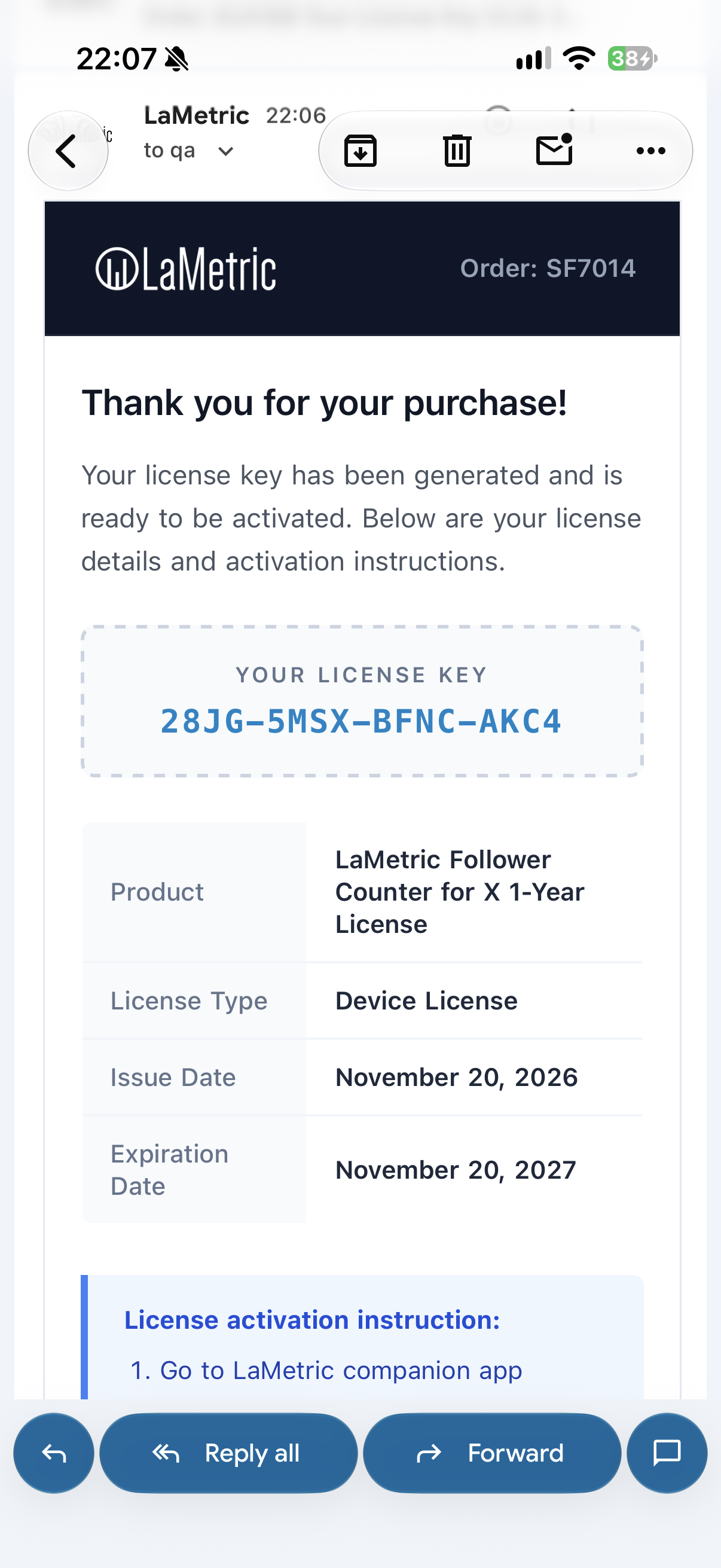
License fulfillment email showing the license code
License codes are normally delivered automatically within a few minutes.
If you don't receive the email:
Check your spam or junk folder.
Verify that you're checking the email address used during checkout.
Confirm that your purchase was completed successfully.
Keep this email for future reference. You may need your license code again when restoring the app or contacting LaMetric Support.
Step 4: Activate your license
Return to the License settings of the Follower Counter app.
Enter the license code received by email.
Select Redeem License Code.
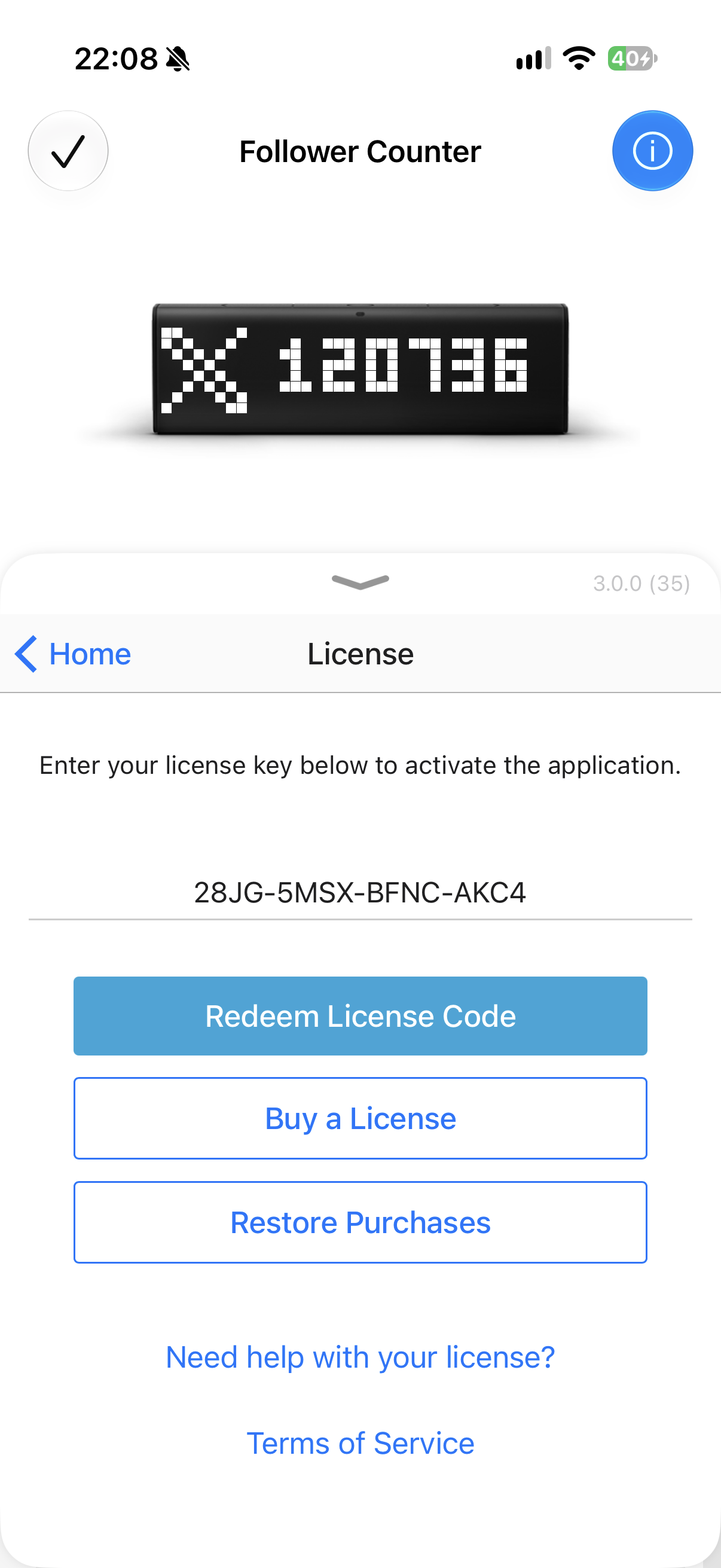
License activation screen with the Redeem License Code button
Once your code is successfully validated, your license will be activated and linked to your LaMetric device.
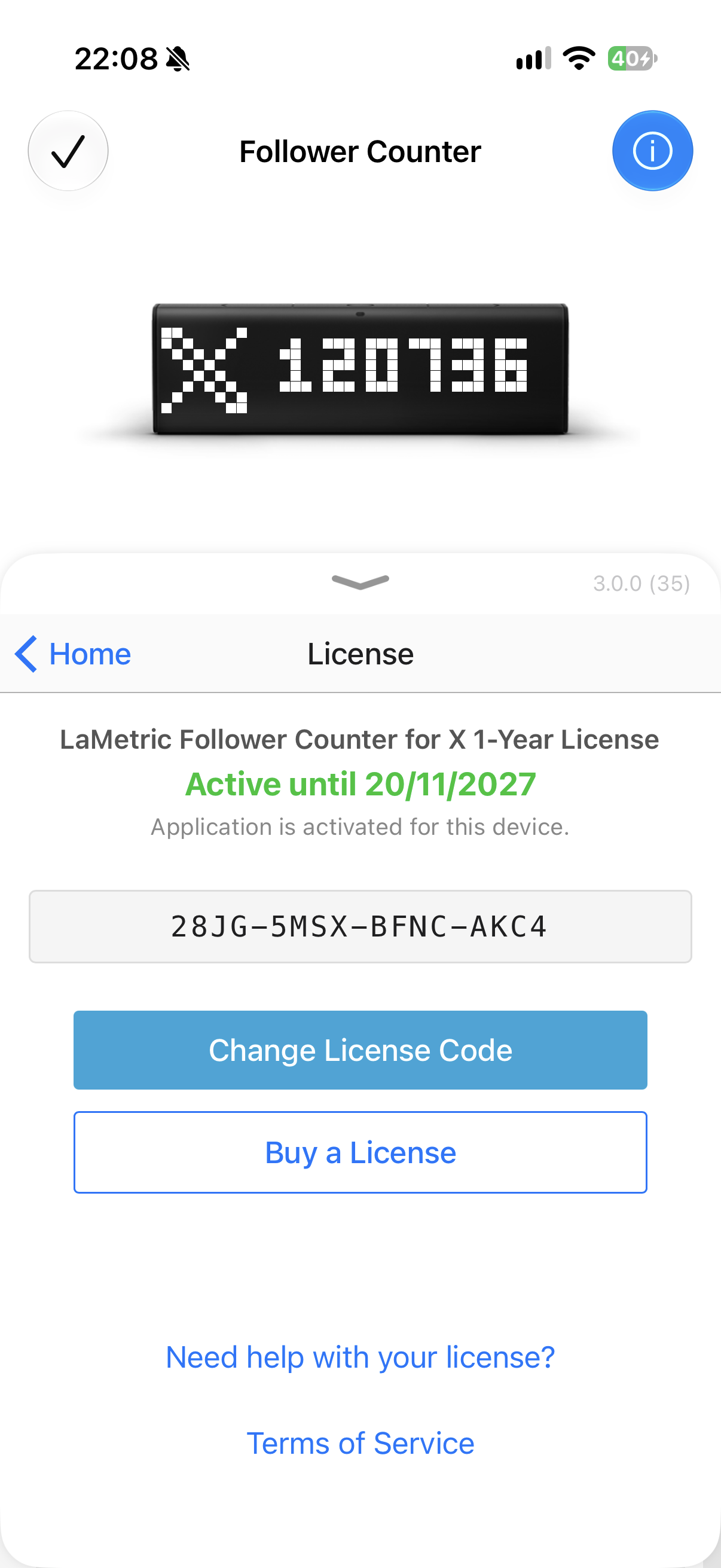
Screenshot: Successfully activated Follower Counter for X License
You can now use Automatic Mode.
Note: License activation and X account connection are independent processes. You can activate your license before connecting your X account or connect your X account first.
To start receiving automatic follower updates, make sure that:
Your license is active.
Your X account is connected to Follower Counter.
Data Source is set to Update Automatically.
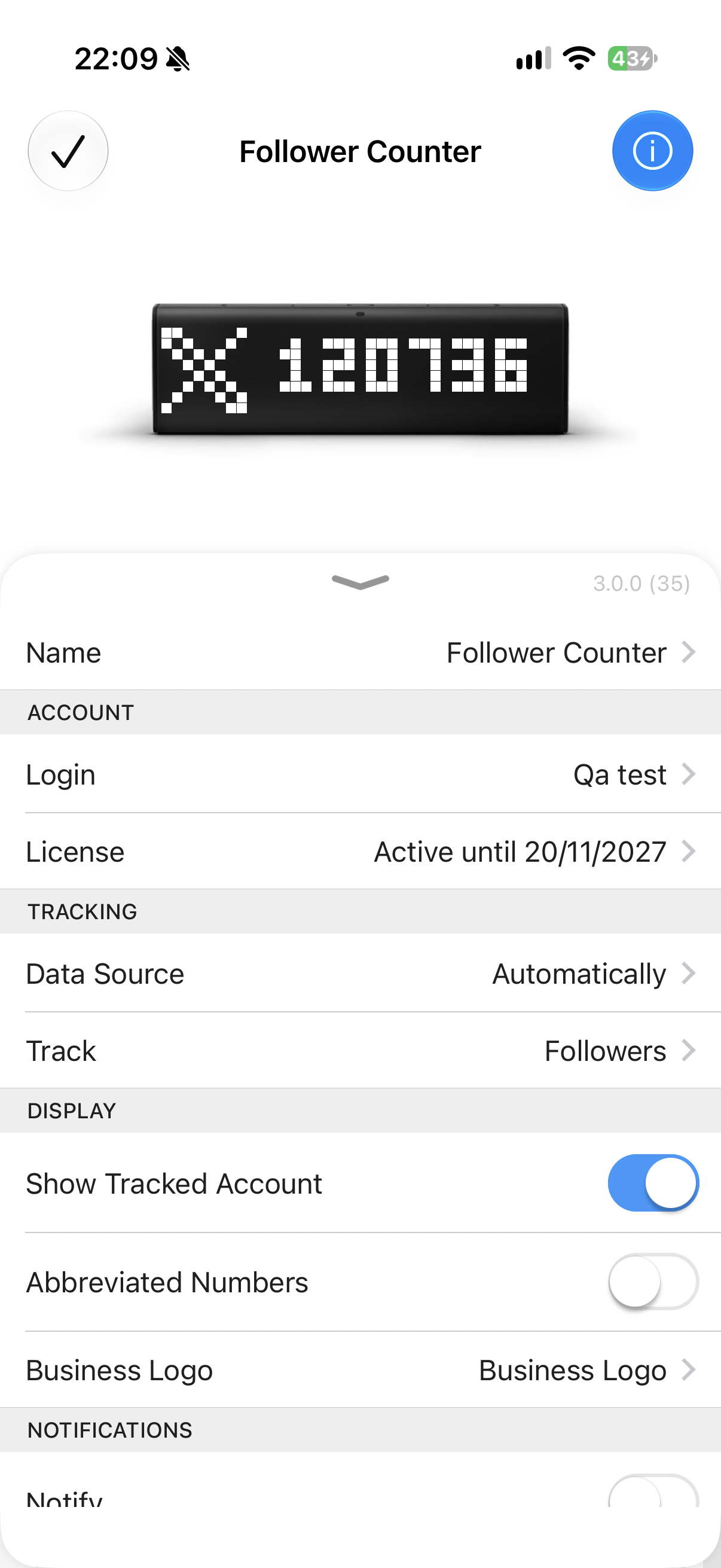
Data Source settings showing Update Automatically
2. Using Your License on a LaMetric Device
Your Follower Counter for X License is linked to a specific LaMetric device, not to your LaMetric account or X account.
This means:
One device per license: Each license activates Automatic Mode on one physical LaMetric device.
One app installation per device: Follower Counter can only be installed once on each LaMetric device.
Account changes: Changing the X account connected to Follower Counter does not require purchasing another license.
License restoration: Reinstalling the app or resetting the same device does not require a new license.
Multiple devices: If you want to use Automatic Mode on another LaMetric device, you'll need a separate license or an approved license transfer.
How to restore your license after reinstalling the app
If you delete Follower Counter and reinstall it on the same LaMetric device, the app will automatically attempt to restore your active license.
If your license isn't restored automatically:
Open Follower Counter in the LaMetric companion app.
Go to Settings → License.
Select Restore Purchases.
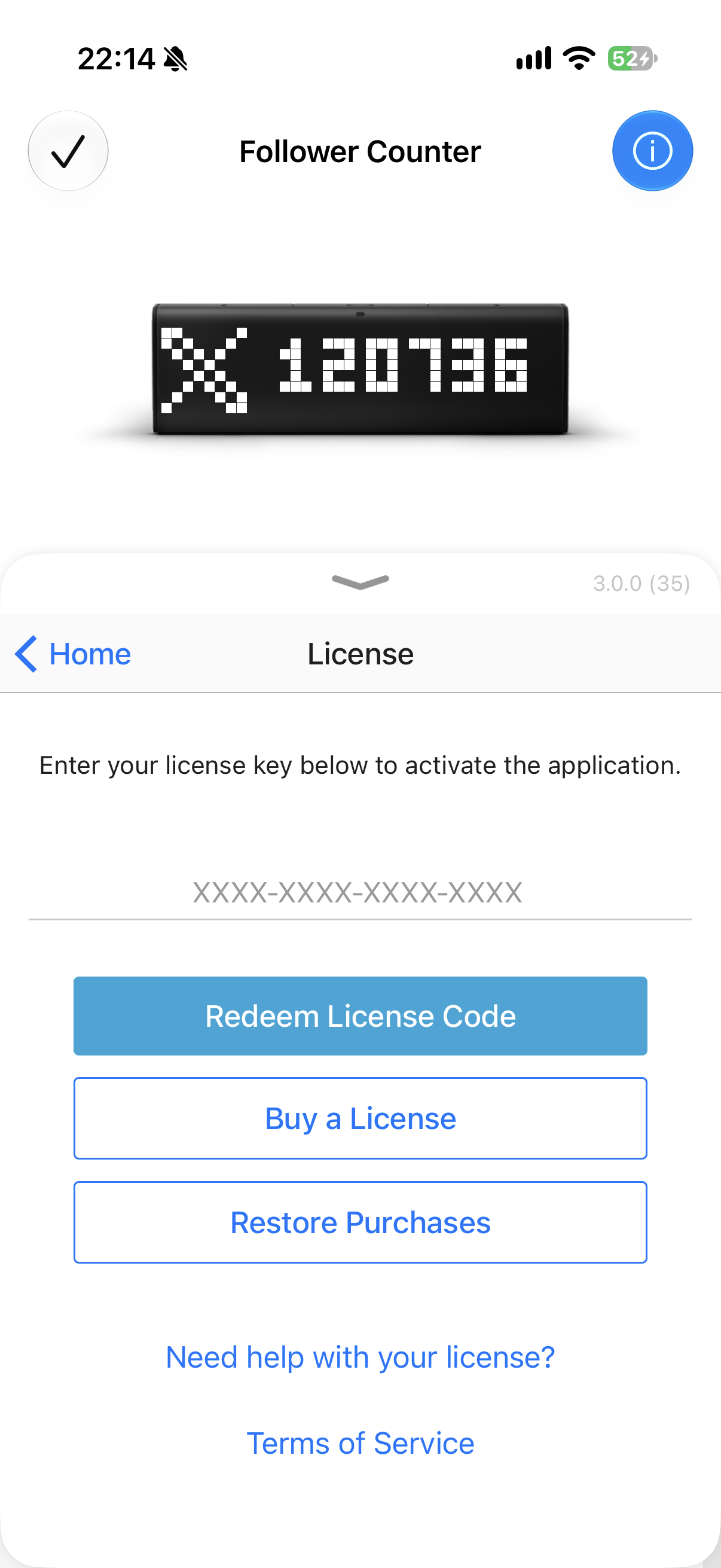
Restore Purchases button
If the restoration is successful, your existing license will become active again.
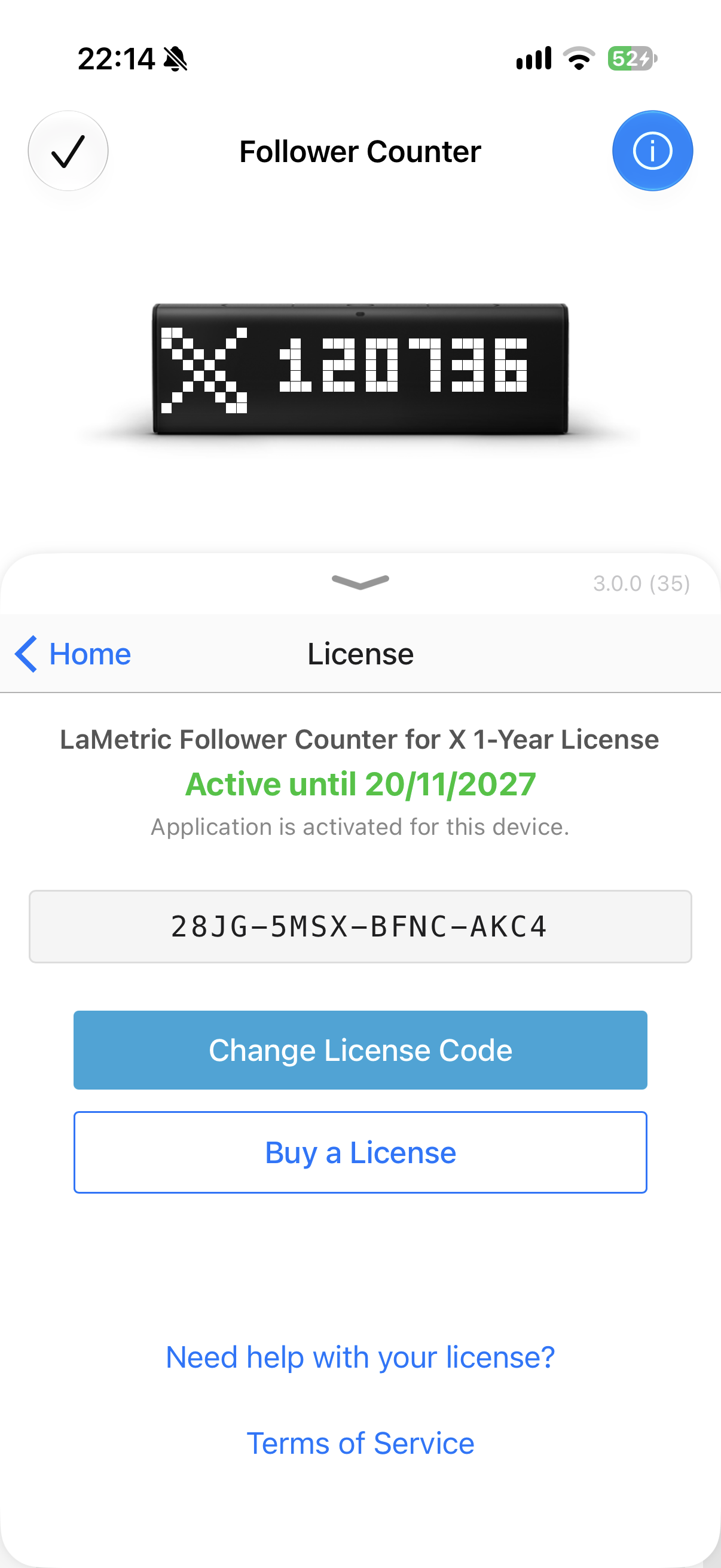
Successfully restored license
If the license still doesn't appear:
Make sure your LaMetric device is connected to the internet.
Restart your LaMetric device.
Open Settings → License and select Restore Purchases again.
If these steps don't work, contact LaMetric Support.
Restoring your license does not change its expiration date.
Using your license after resetting your device
If you reset your LaMetric device and set it up again, your existing license remains associated with the same physical device.
After reinstalling Follower Counter, the app should automatically attempt to restore your license.
If necessary, select Restore Purchases in the License settings.
This also applies when you reset your LaMetric device and connect it to a different LaMetric account.
Transferring your license to another device
A Follower Counter for X License cannot be transferred directly from one LaMetric device to another.
If you replace your device or need to move your license to another device, contact support@lametric.com.
Explain your situation and provide your purchase details and device information.
License transfer requests are reviewed by the LaMetric Support team on a case-by-case basis.
3. How to Renew Your Follower Counter for X License
Follower Counter for X uses an annual subscription with automatic billing renewal.
When your renewal payment is successful, a new license code will be sent to your purchase email address.
You must activate the new license code manually to continue using Automatic Mode.
Completing the renewal payment alone does not automatically activate your renewed license.
Activate your renewed license
Find the email containing your new Follower Counter for X license code.
Open the LaMetric companion app.
Select Follower Counter on your device.
Open Settings → License.
Enter the new license code.
Select Redeem License Code.
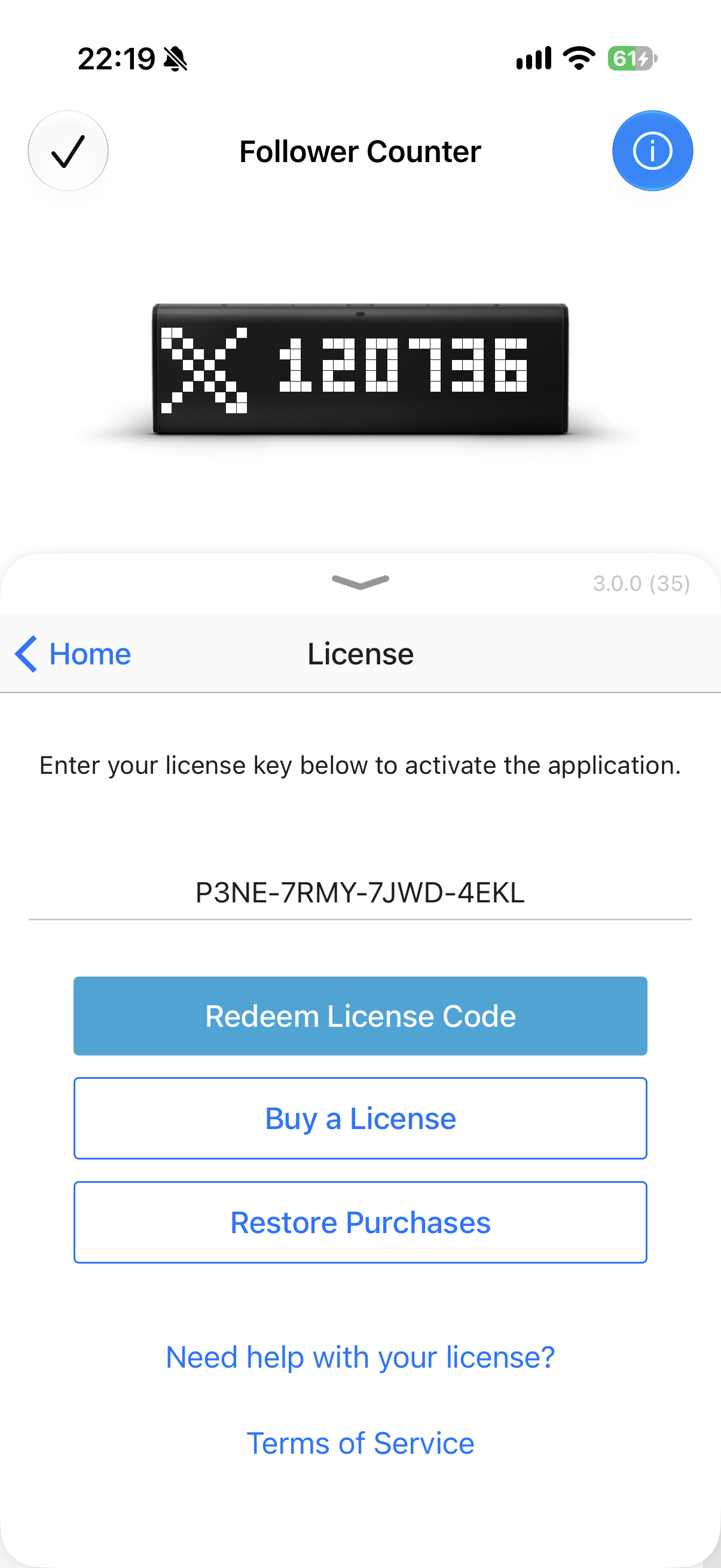
Redeeming a renewed license code
Once the code is successfully validated, your renewed license will become active on your LaMetric device.
Your renewed license is valid for 365 days from its renewal purchase date, not from the date you enter the new code.
Tip: Activate your renewed license code promptly to avoid interruptions in automatic follower updates.
Managing or cancelling automatic renewal
You can manage your subscription, view orders, or cancel automatic renewal through the LaMetric online store's customer portal.
Use the store where you originally purchased your license:
Global Store: https://store.lametric.com/account
EU Store: https://store-eu.lametric.com/account
UK Store: https://store-uk.lametric.com/account
A link to your customer account is also included in your purchase confirmation email.
Cancelling automatic renewal prevents future renewal charges but does not immediately deactivate your current license.
You can continue using Automatic Mode until your current license expires.
4. Important Information About Your License
License validity
Each Follower Counter for X License is valid for 365 days from its purchase date.
Activating your license later does not extend its expiration date.
Reinstalling the app, restoring the license, or redeeming the same code again does not restart or extend the license period.
License and device binding
Your license becomes linked to a specific LaMetric device when you activate it for the first time.
The license is associated with the device's unique serial number.
Changing your connected X account or reconnecting the same physical device to another LaMetric account does not require a new license.
However, a license that has already been activated on one LaMetric device cannot be activated on another device without an approved transfer.
Reinstalling the app or resetting the device
Reinstalling Follower Counter or resetting your LaMetric device does not create a new license period.
After reinstalling the app, your active license should be restored automatically.
If it isn't, select Restore Purchases in the app's License settings.
Your existing expiration date remains unchanged.
Automatic renewal and cancellation
Annual renewal payments are processed automatically unless automatic renewal is cancelled.
Each successful renewal provides a new license code that must be manually activated.
You can cancel automatic renewal through your customer account in the LaMetric online store.
Cancelling automatic renewal does not immediately deactivate your existing license. Automatic Mode remains available until your license expires.
After your license expires
When your license expires, Automatic Mode becomes unavailable until a valid new license is activated.
Your LaMetric device may display a message indicating that a license is required.
However, you can continue using Follower Counter for free in Manual Mode.
To switch to Manual Mode:
Open Follower Counter settings in the LaMetric companion app.
Find Data Source.
Select Specify Manually.
Enter the follower count you want to display.
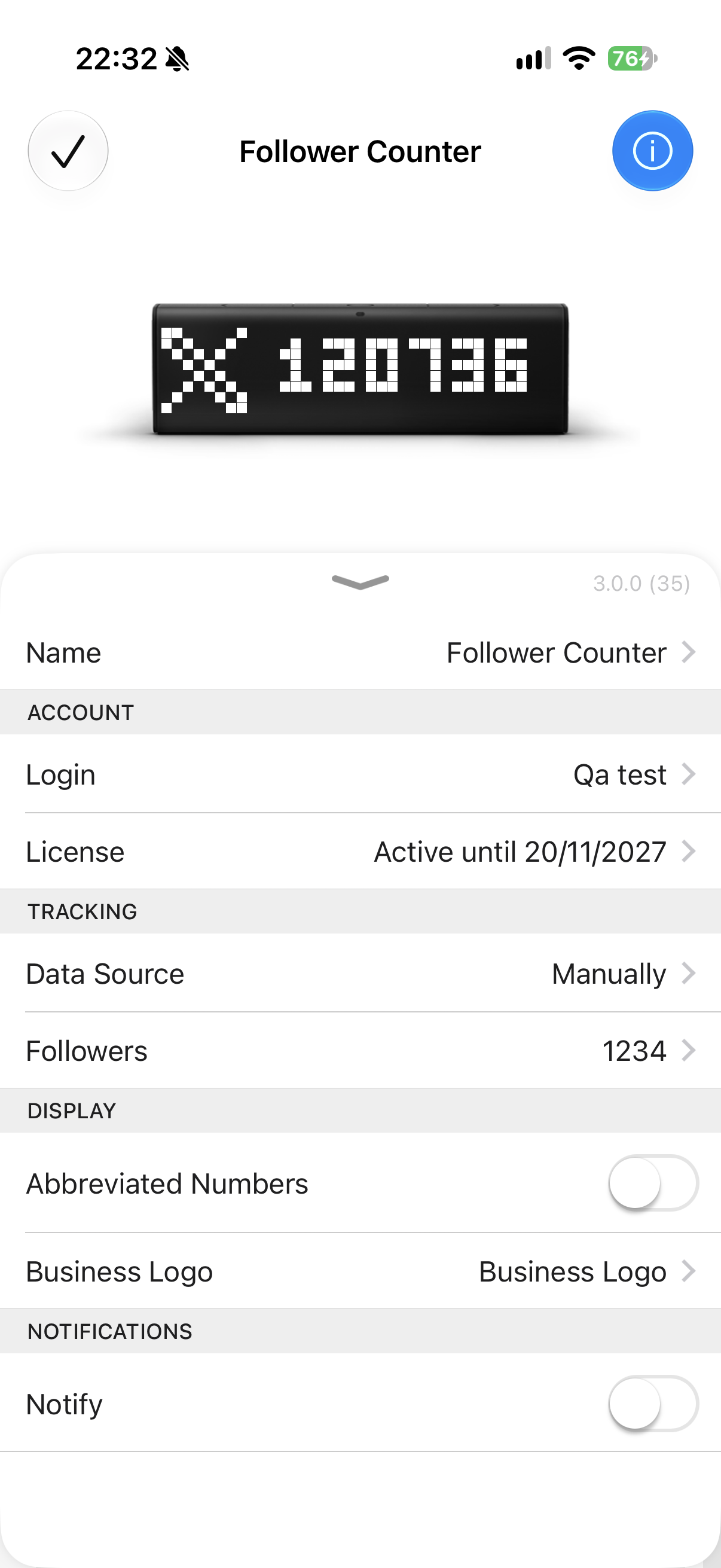
Switching Data Source to Specify Manually
Your LaMetric device will display the number you entered.
Manual Mode doesn't require a license or a connected X account, but the displayed number won't update automatically.
5. Troubleshooting
I haven't received my license code
License codes are normally delivered automatically within a few minutes after a successful purchase or renewal.
Check your spam or junk folder.
Verify the email address used during checkout.
Check your order confirmation to make sure your payment was successful.
If you're renewing, look for a new email containing your new license code.
If you still can't find your code, contact LaMetric Support and provide your order number and purchase email address.
My license code is invalid
If your app displays an invalid license code error:
Make sure you've entered the complete code correctly.
Remove any extra spaces before or after the code.
Check that you're using a Follower Counter for X license code, not a LaMetric Plus license code or one purchased for another app.
Make sure your LaMetric device is connected to the internet.
Try entering the code again.
If the code is still rejected, contact LaMetric Support and include the exact error message.
My license code has already been activated
A Follower Counter for X License becomes linked to one LaMetric device when it is activated for the first time.
If you're trying to activate the same license code on a different LaMetric device, you'll receive an error indicating that the license has already been activated.
If you're using the same device where the license was originally activated:
Open Settings → License.
Select Restore Purchases.
If the license isn't restored, restart your LaMetric device and try again.
If you're using a different LaMetric device:
You'll need a separate license or an approved license transfer.
Contact LaMetric Support if you need to request a transfer or believe the error is incorrect.
I reinstalled Follower Counter, but my license is missing
When you reinstall Follower Counter on the same LaMetric device, the app should automatically restore your active license.
If the license doesn't appear:
Check that your device is connected to the internet.
Open Settings → License.
Select Restore Purchases.
If restoration fails, restart your LaMetric device and try again.
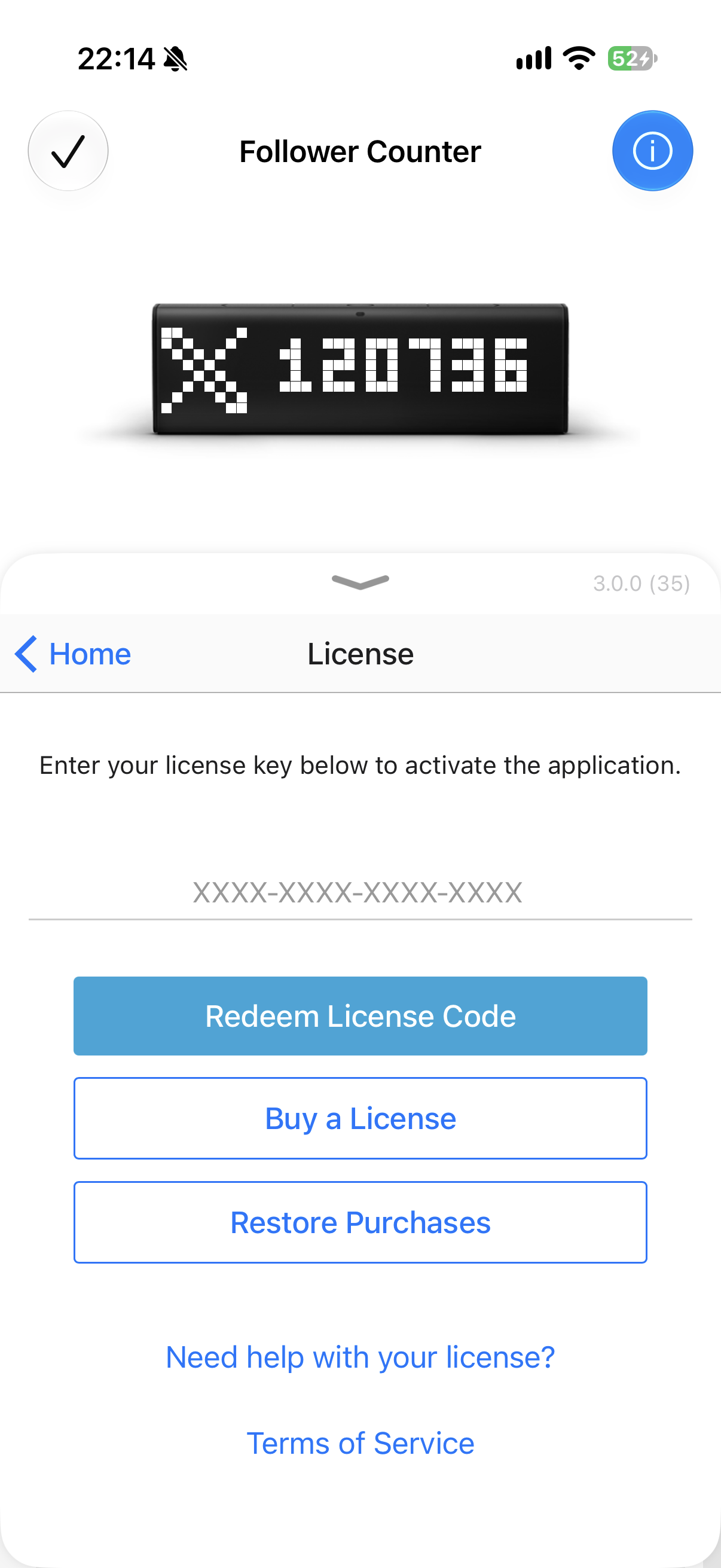
Restore Purchases option
If the problem persists, contact LaMetric Support.
You don't need to purchase another license for the same device while your existing license remains valid.
My device displays "LICENSE IS REQUIRED," but I've already purchased a license
If your device displays a license-required message even though you've purchased a license:
Open Follower Counter settings in the LaMetric companion app.
Go to License and check the current license status.
If the license isn't active, select Restore Purchases.
Make sure your license hasn't expired.
Restart your LaMetric device and check again.
If you've recently renewed your license, remember that you must manually redeem the new license code received by email.
If the message remains visible despite having an active license, contact LaMetric Support.
My license is active, but my follower count isn't updating
An active license enables Automatic Mode, but your X account must also be connected correctly.
If your follower count isn't updating:
Open Follower Counter settings.
Make sure Data Source is set to Update Automatically.
Confirm that your X account is connected.
Make sure your LaMetric device is connected to the internet.
Check that the correct X account is selected.
Restart the app or device if necessary.
Note: Follower counts are updated periodically, not continuously. Changes on X may take some time to appear on your LaMetric device due to update scheduling, API rate limits, or temporary service availability.
If the count remains outdated, contact LaMetric Support.
My license is active, but I'm asked to connect an X account
A Follower Counter for X License and an X account connection are two separate requirements.
Your license provides access to Automatic Mode, but it doesn't automatically connect your X account.
To enable automatic follower updates:
Open Follower Counter settings.
Connect your X account using the provided sign-in option.
Authorize the requested permissions on X.
Set Data Source to Update Automatically.
You don't need to purchase another license.
I changed my X account. Do I need a new license?
No. Your Follower Counter for X License is linked to your LaMetric device, not your X account.
You can disconnect your existing X account and connect a different one without purchasing another license.
Make sure your license is still active and your new X account is connected successfully.
I have LaMetric Plus. Why does Follower Counter ask me to purchase a license?
Follower Counter for X is licensed separately from LaMetric Plus.
A LaMetric Plus subscription doesn't include Automatic Mode in Follower Counter for X.
To receive automatic X follower updates, you'll need to purchase a dedicated Follower Counter for X License.
Alternatively, you can continue using the app for free in Manual Mode.
My license has expired
If your license has expired, you'll need a new valid license code to continue using Automatic Mode.
If automatic renewal is enabled:
Check whether your annual renewal payment was successful.
Find the email containing your new license code.
Open Follower Counter Settings → License.
Enter the new code.
Select Redeem License Code.
If automatic renewal was cancelled:
Open Follower Counter Settings → License.
Select Buy a License.
Complete your purchase.
Activate the new license code received by email.
Until a new license is activated, you can continue using Manual Mode for free.
I've paid for renewal, but my license still shows as expired
A successful renewal payment doesn't automatically activate your new license code.
Check your email for the new code issued after renewal.
Open Follower Counter Settings → License.
Enter the new code.
Select Redeem License Code.
If the renewed license still appears expired, contact LaMetric Support with your order details and the exact error message.
I reset my LaMetric device or changed my LaMetric account
Your Follower Counter for X License is linked to your physical LaMetric device rather than your LaMetric account.
If you've reset the same device and connected it to another LaMetric account, your existing license should still work.
After reinstalling Follower Counter:
Allow the app to attempt automatic license restoration.
If the license isn't recognized, open Settings → License.
Select Restore Purchases.
Restart your device if restoration doesn't work.
If you continue experiencing problems, contact LaMetric Support.
I purchased multiple licenses or activated a license on the wrong device
Each Follower Counter for X License is linked to the first LaMetric device on which it is successfully activated.
If you activated a license on the wrong device or want to reassign a license to another device, contact LaMetric Support.
Include your order number, purchase email address, and information about the devices involved.
License transfers are reviewed by the support team on a case-by-case basis.
6. Still Need Help?
If you've followed the instructions above and still can't activate, restore, or use your Follower Counter for X License, our support team is here to help.
Contact support@lametric.com and include:
Your order number.
The email address used during purchase.
Your LaMetric device model (TIME or SKY).
Your device serial number, if requested.
A description of the issue and any error message displayed.
Whether you're activating, restoring, or renewing your license.
If possible, attach a screenshot of the error to help us investigate.
For your security, never share your LaMetric account password or X account password.
For additional information, see the Follower Counter for X Terms of Service.