
LaMetric Plus is an annual license that unlocks premium features in supported apps on your LaMetric smart devices.
One LaMetric Plus license works across all supported Plus Apps and compatible LaMetric devices connected to the same LaMetric account. You don't need to purchase a separate license for each app or device.
This guide explains how to purchase, activate, restore, renew, and troubleshoot your LaMetric Plus license.
1. How to Purchase and Activate LaMetric Plus
Step 1: Open the License settings
Open the LaMetric companion app on your smartphone.
Select a supported LaMetric Plus app installed on your device.
Open the app's Settings.
Go to License.
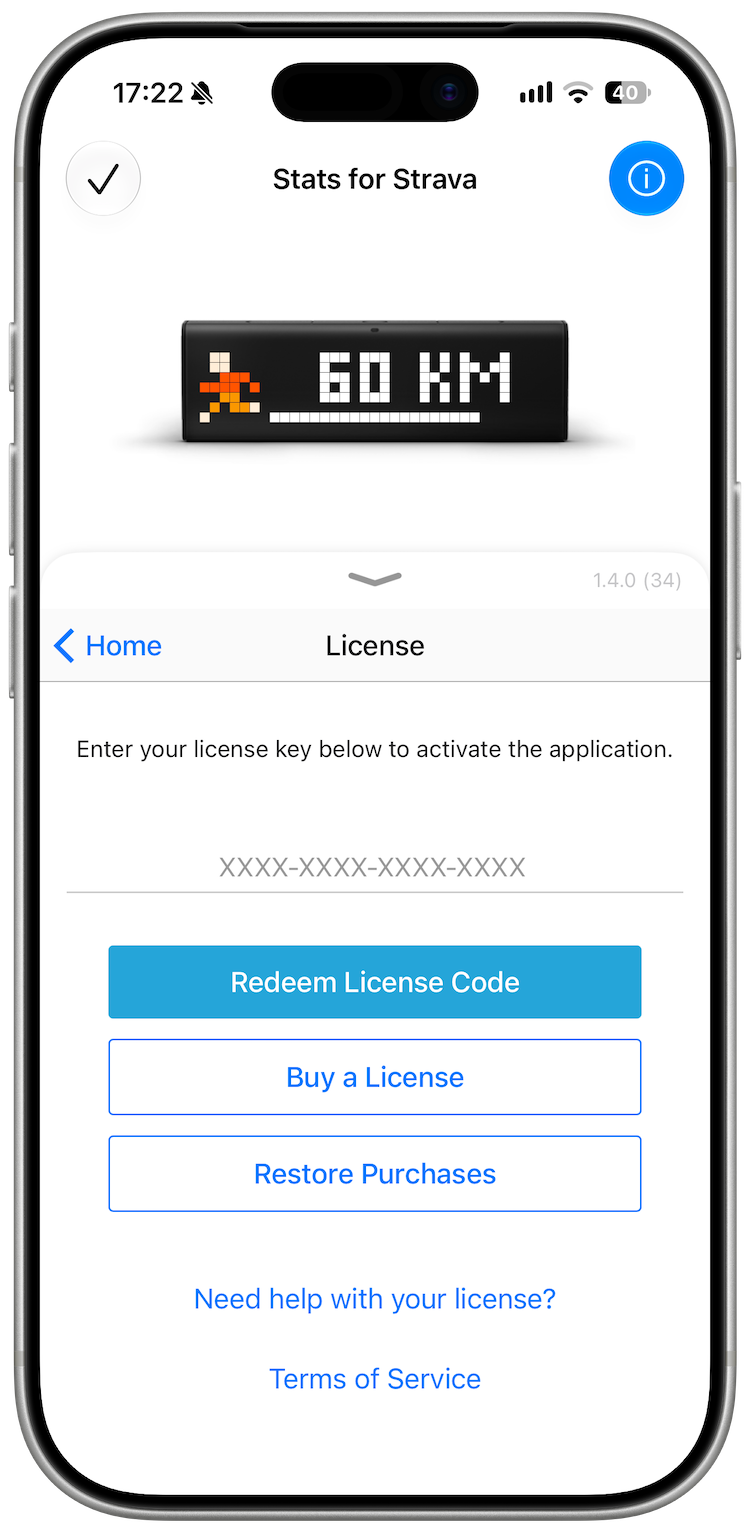
License Settings
If you don't have a license yet, select Buy a License.
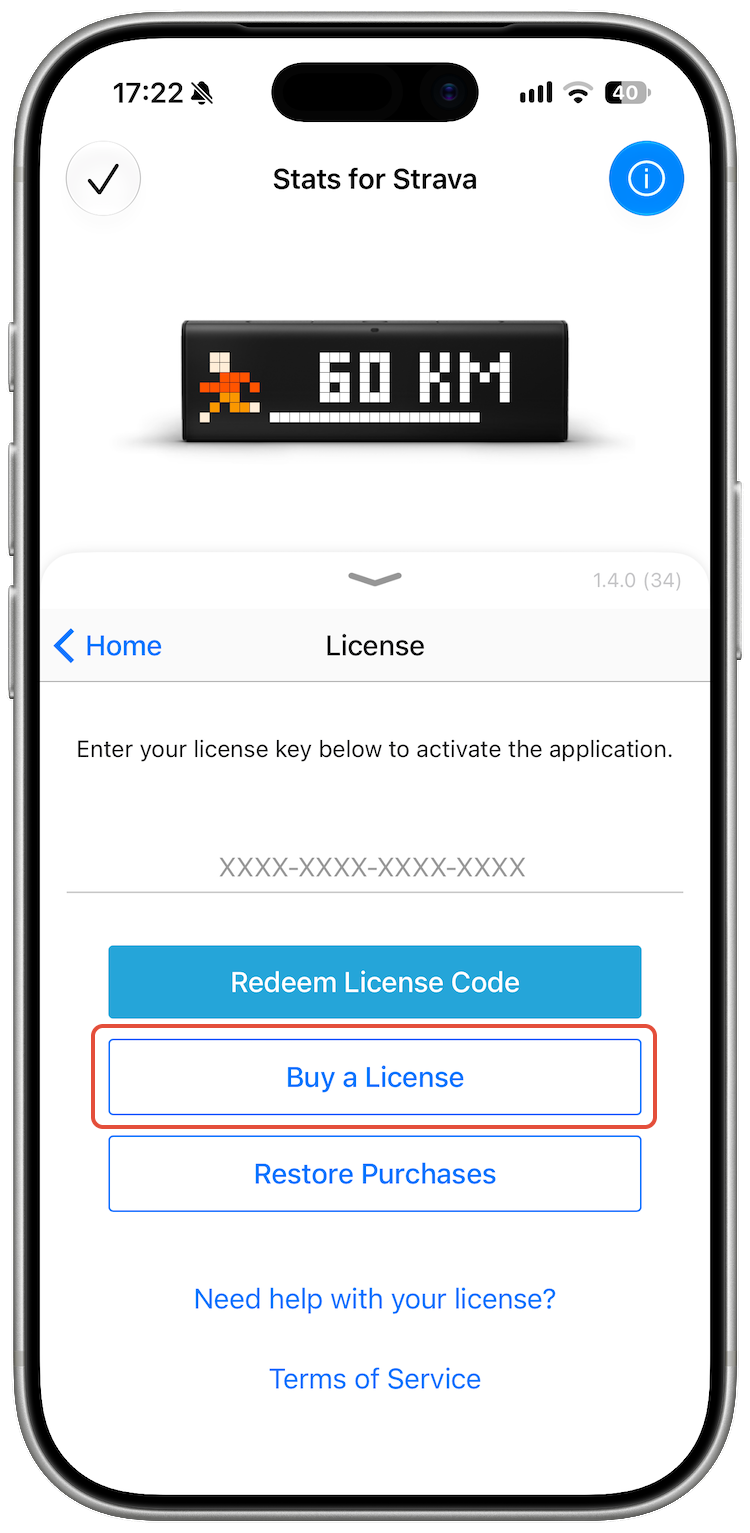
Tap 'Buy a Licence' button
You'll be redirected to the LaMetric online store to complete your purchase.
Step 2: Purchase your LaMetric Plus license
Follow the instructions in the LaMetric online store to purchase your license.
Make sure to provide a valid email address that you can access, as your license code will be delivered to this address.
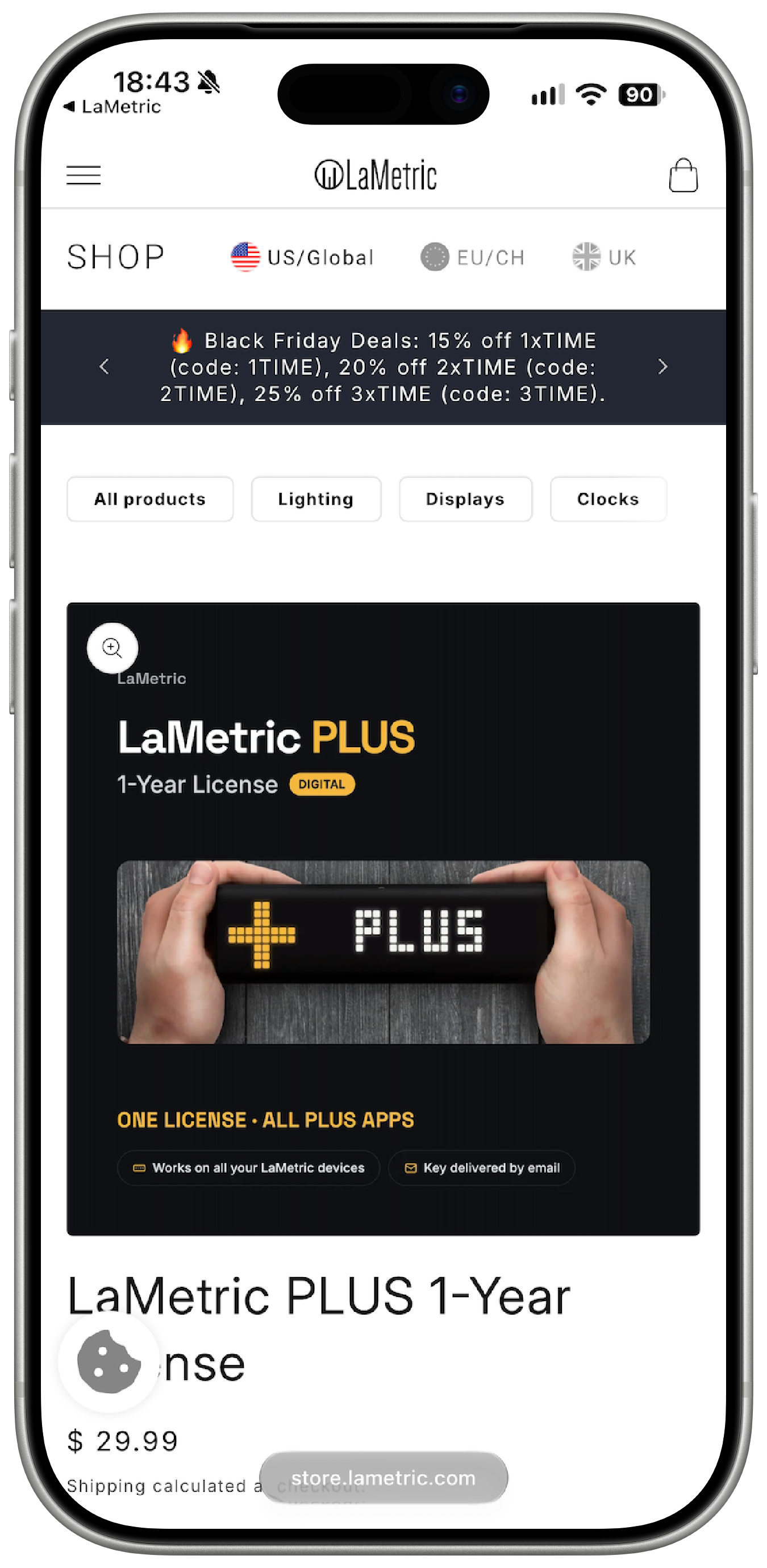 | 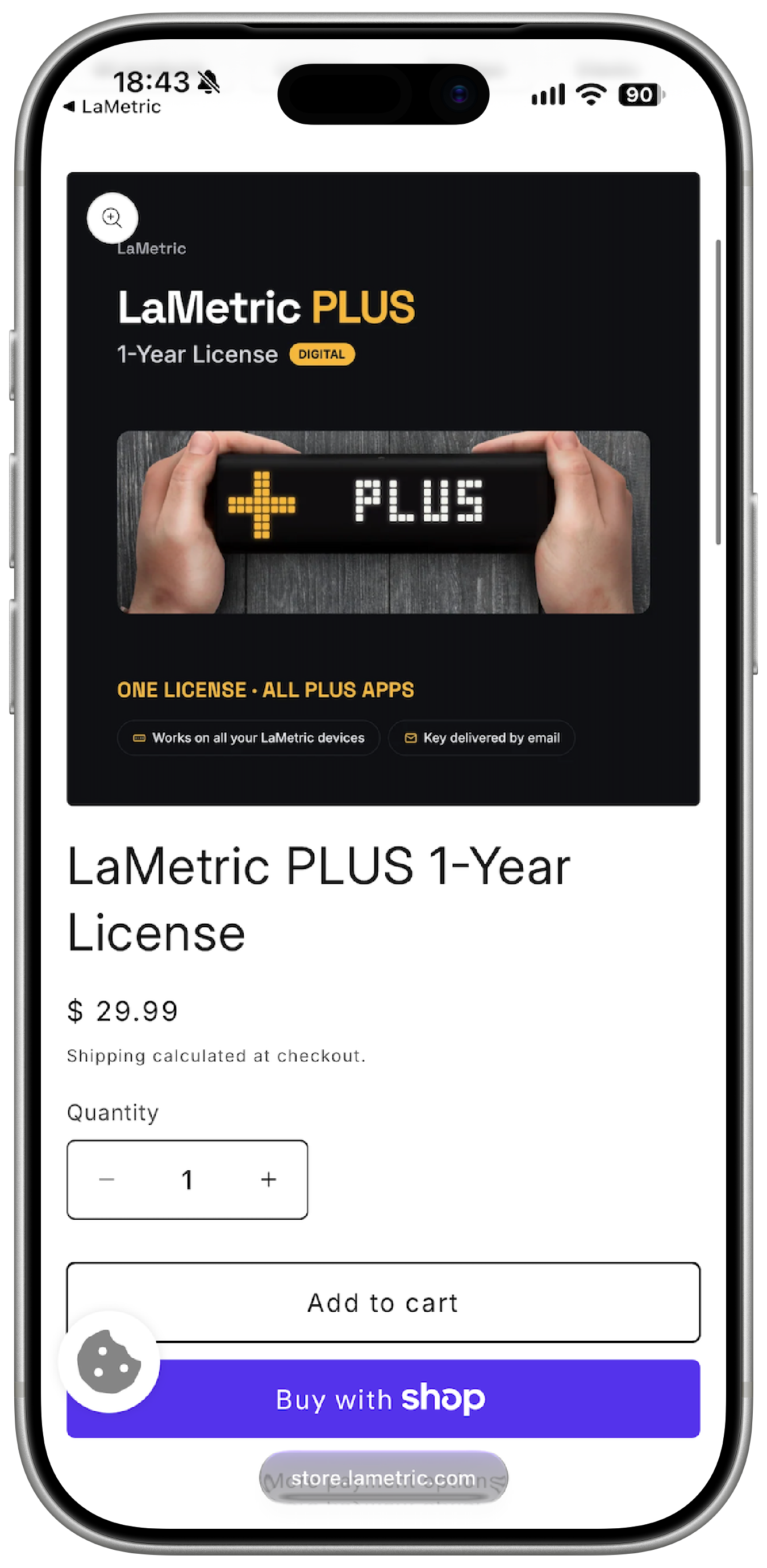 |
LaMetric Plus product page on the web store
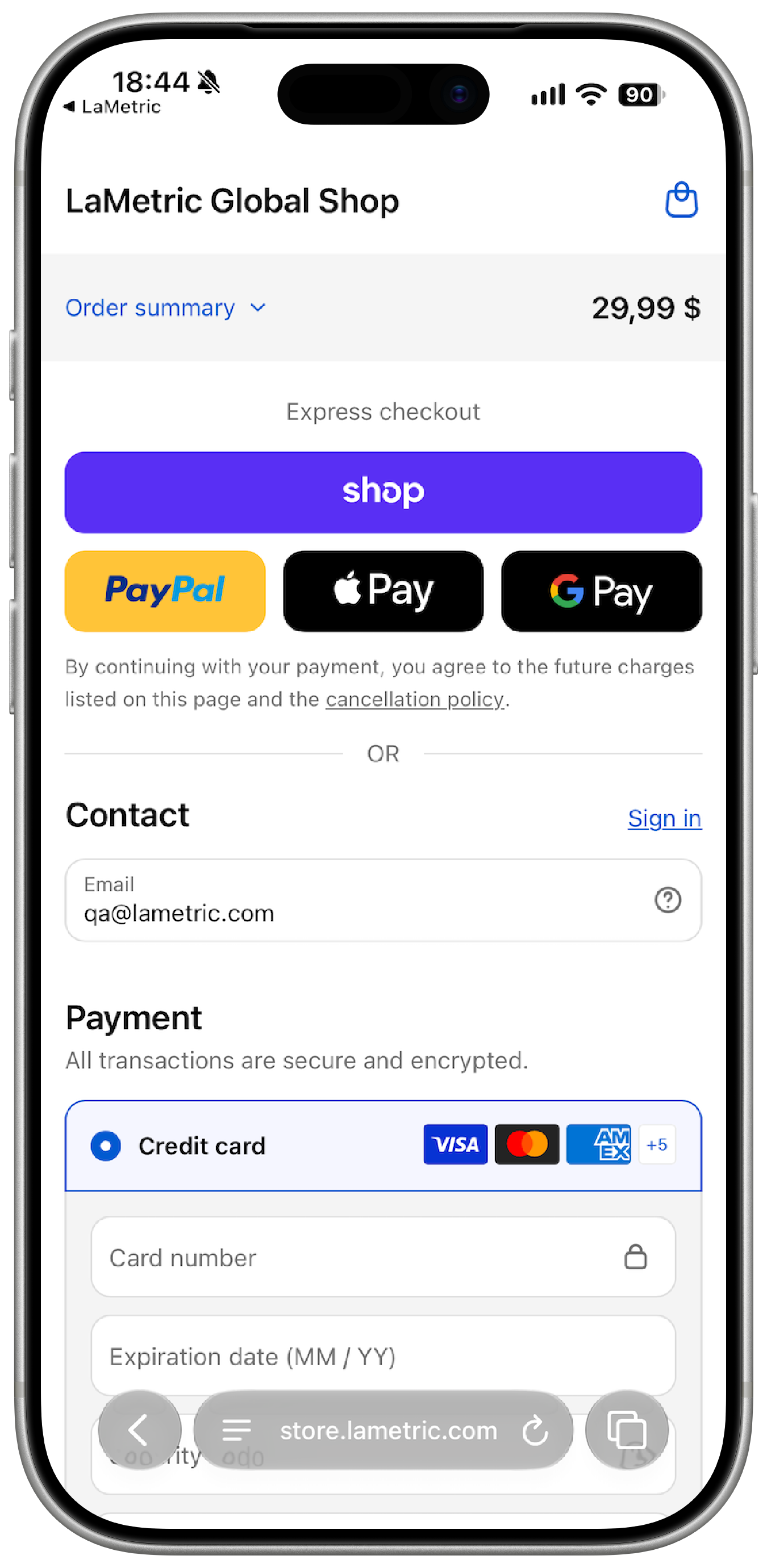 | 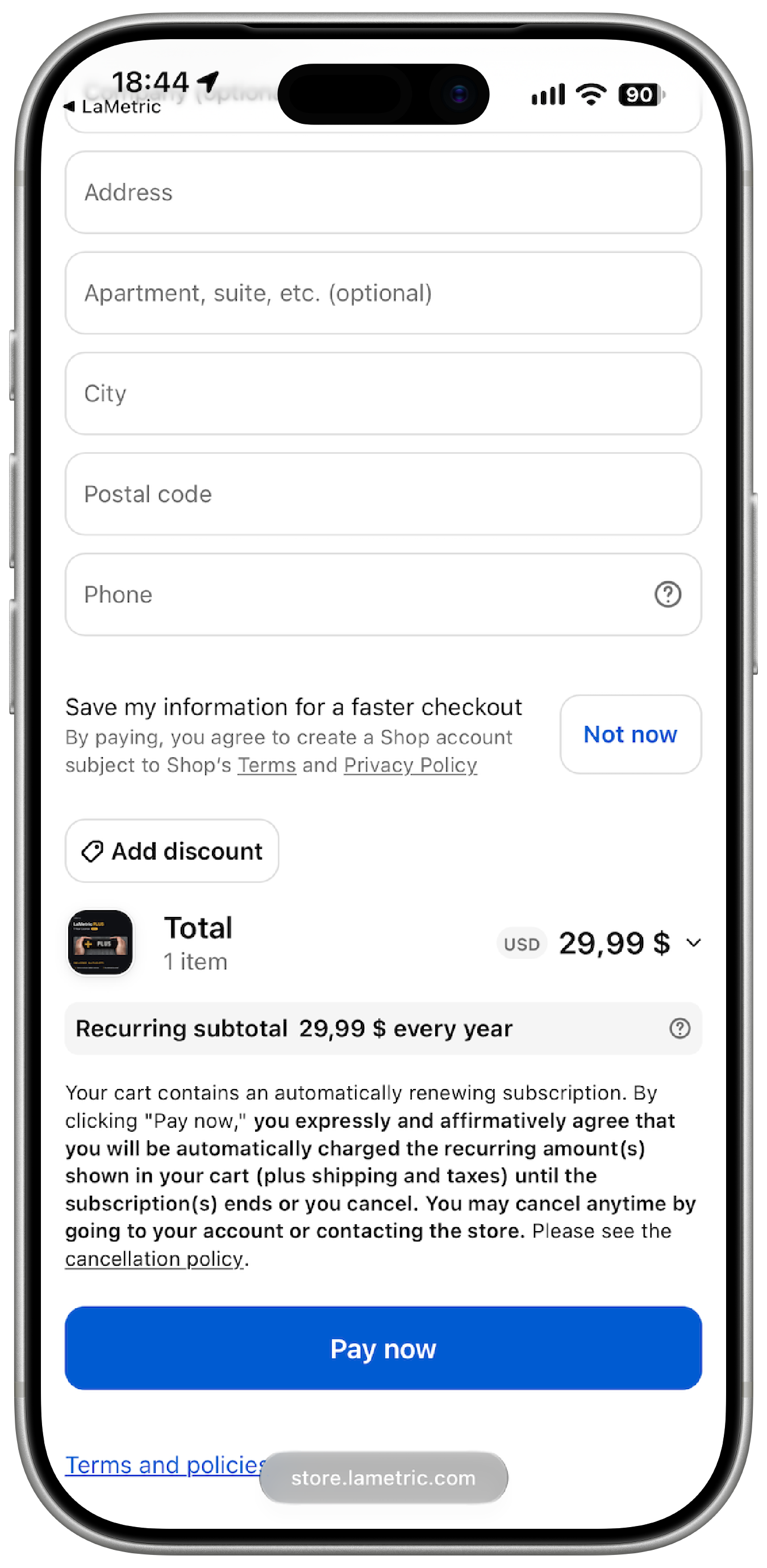 |
Checkout page
Important information:
LaMetric Plus provides one year of access to supported premium apps.
One license covers all compatible LaMetric devices connected to the same LaMetric account.
Your license period starts on the purchase date, not the activation date.
Annual renewal payments are processed automatically unless you cancel automatic renewal. Each renewal provides a new license code that must be activated manually.
Step 3: Find your license code
After completing your purchase, you'll receive an email containing your LaMetric Plus license code.
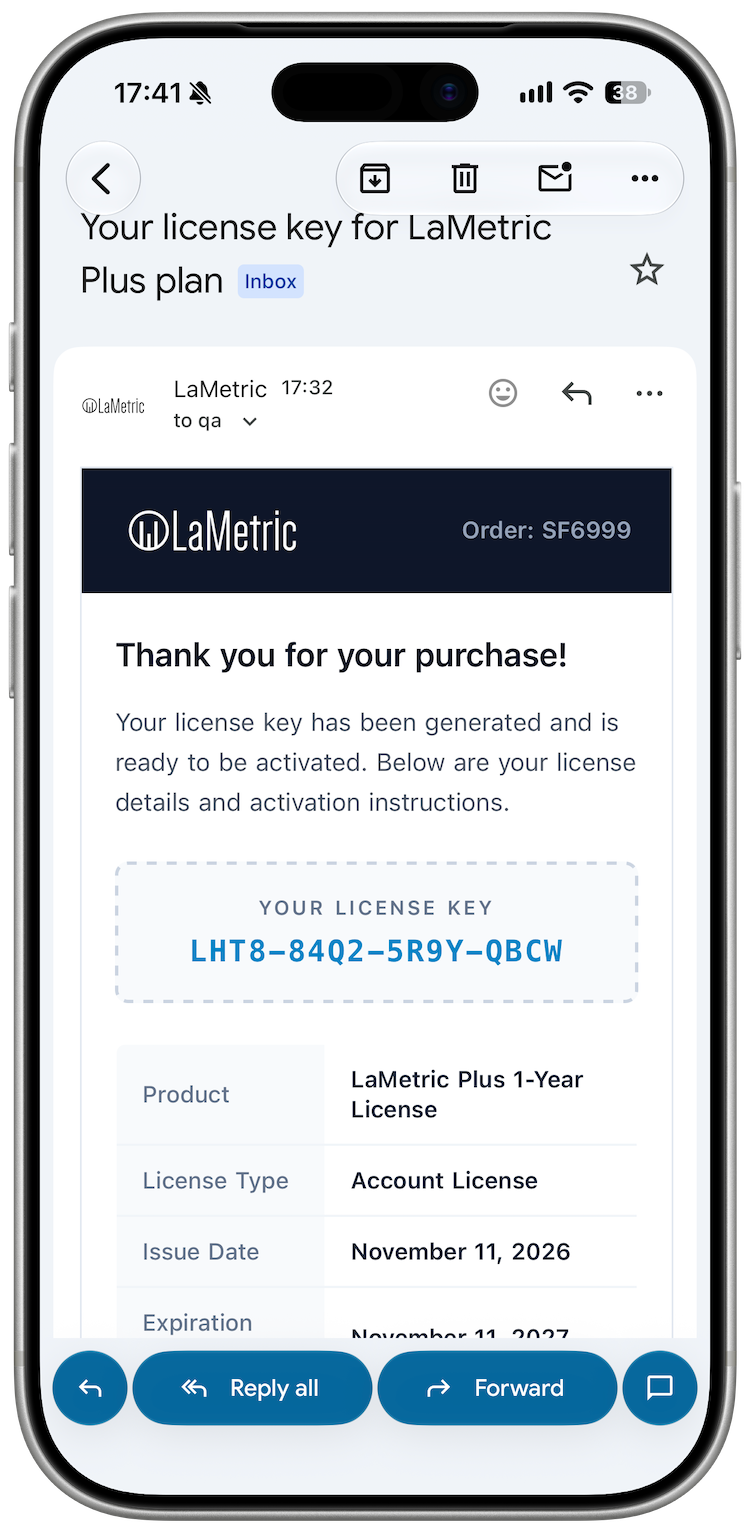
License email with license key
License codes are normally delivered automatically within a few minutes.
If you don't receive the email:
Check your spam or junk folder.
Verify that you're checking the email address used during checkout.
Confirm that your purchase was completed successfully.
Keep this email for future reference. You may need your license code again when reinstalling apps or setting up another device.
Step 4: Activate your license
Return to the License settings of any supported LaMetric Plus app.
Enter the license code received by email.
Select Redeem License Code.
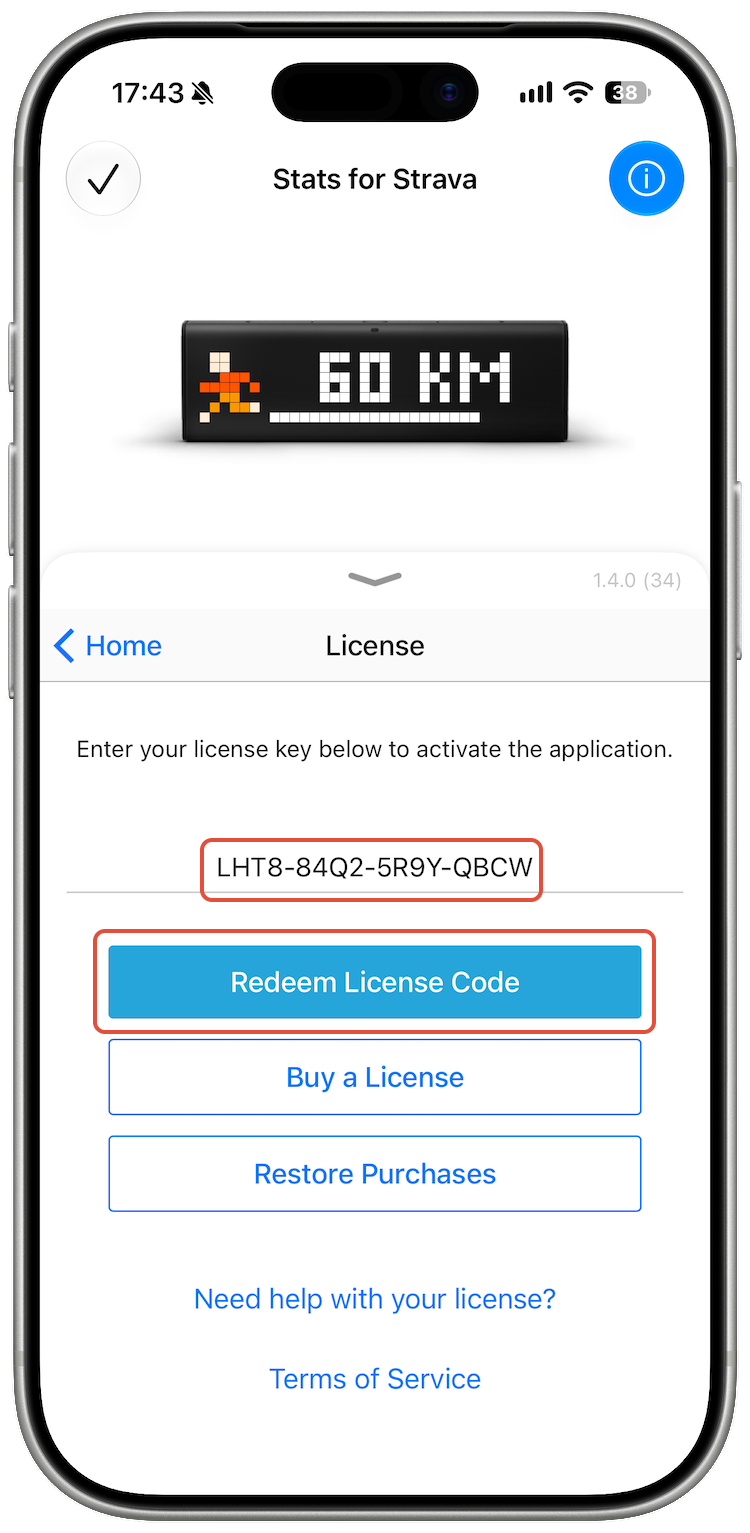
License activation
Once your code is successfully validated, your LaMetric Plus license will be activated and linked to your LaMetric account.
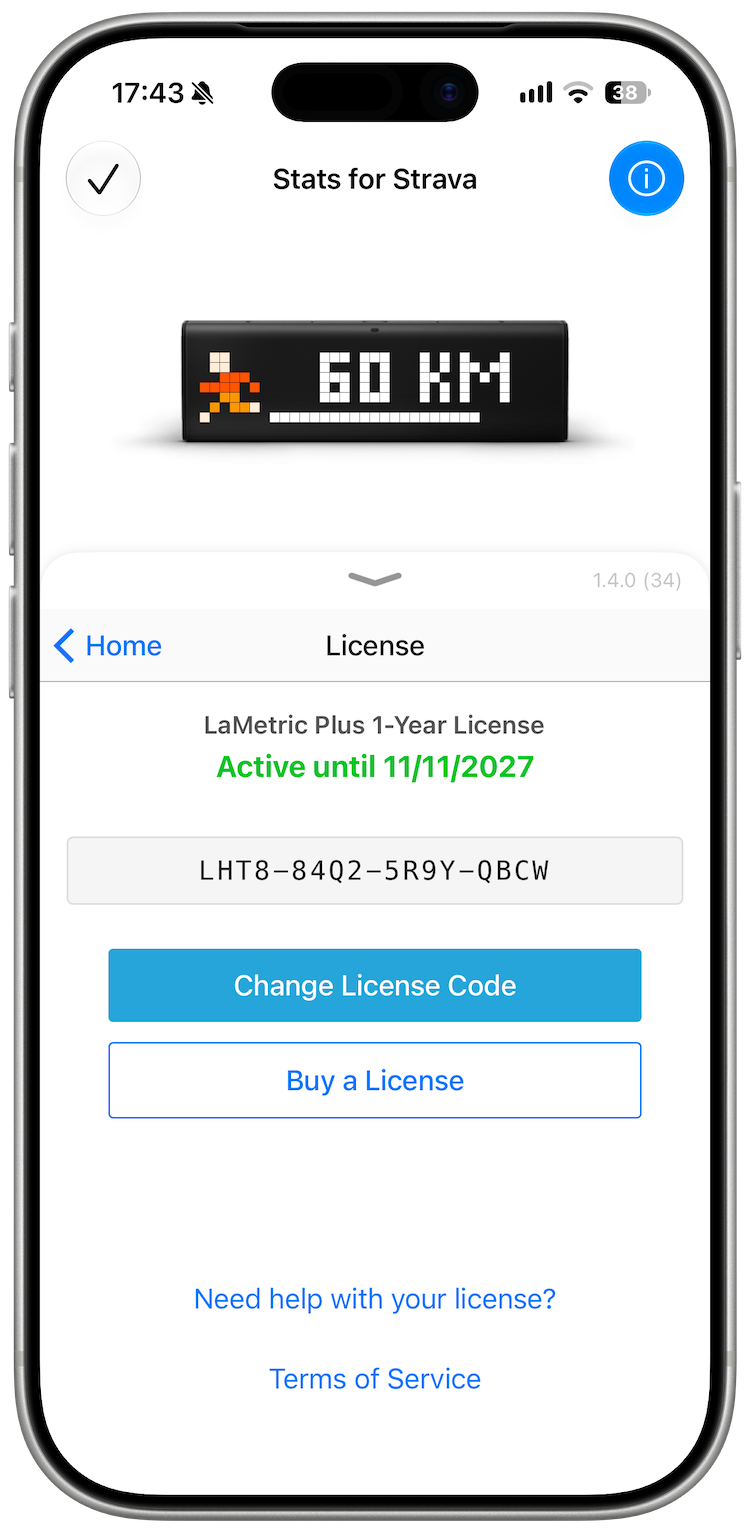
Successfully activated license
You can now use the premium features of the app.
Your LaMetric Plus license also covers other supported Plus Apps and compatible devices connected to the same LaMetric account. You may need to restore or activate the license in those apps separately.
Note: Some apps may require additional setup, such as connecting an external service account, before you can use their features.
2. Using Your License Across Multiple Apps and Devices
Your LaMetric Plus license is linked to your LaMetric account, not to an individual app or device.
This means:
Multiple apps: One license unlocks premium features in all supported Plus Apps.
Multiple devices: You can use your license on compatible LaMetric devices connected to the same LaMetric account.
No additional purchases: You don't need a separate license for each supported app or device.
License restoration: If another Plus App doesn't recognize your active license, you can restore it or enter your existing license code.
How to activate LaMetric Plus in another app or device
Make sure the device is connected to the same LaMetric account associated with your license.
Open the supported Plus App you want to use.
Go to the app's Settings → License.
If the app doesn't show an active license, select Restore Purchase.
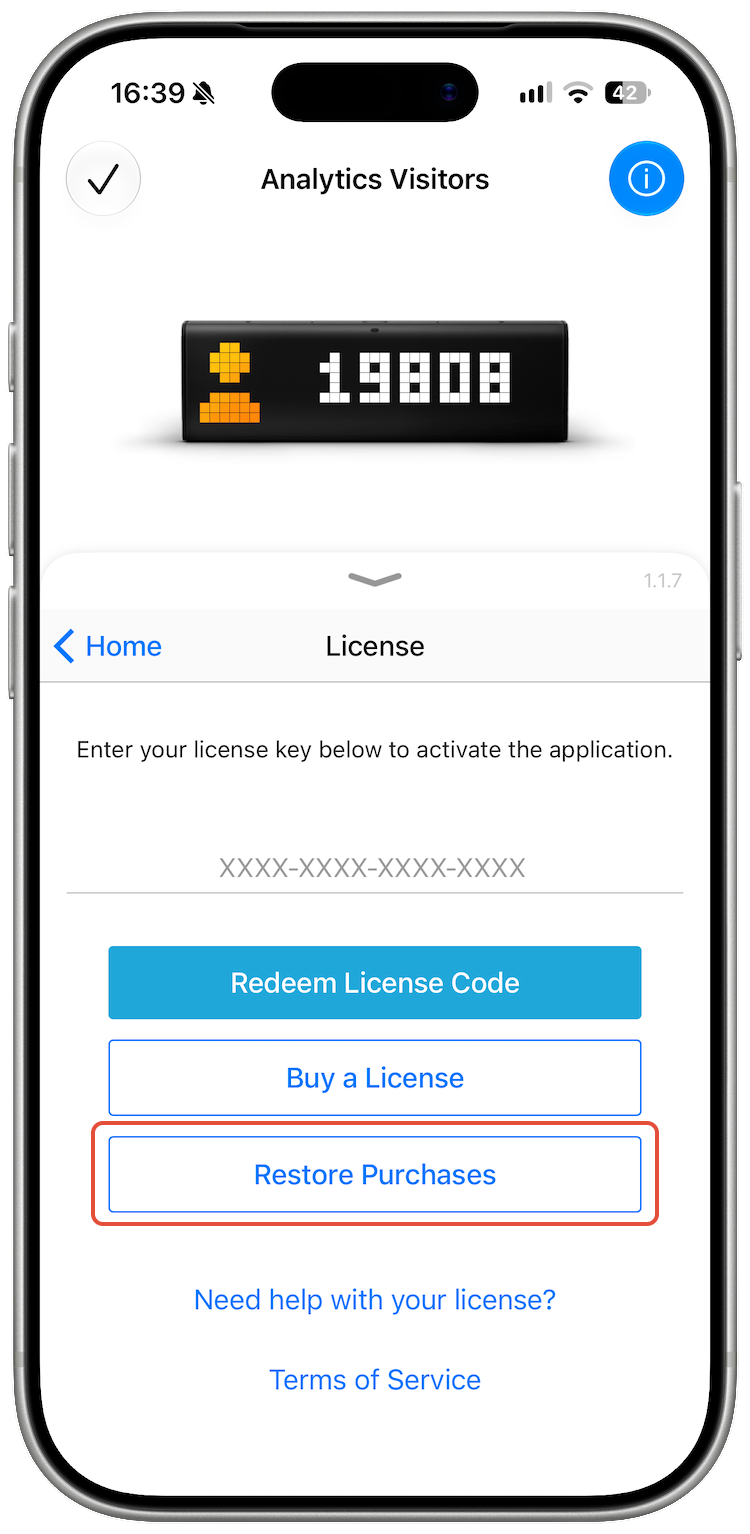
Restore Purchases button
If restoring the license doesn't work, enter your existing LaMetric Plus license code and select Redeem License Code.
You can reuse the same license code in multiple supported Plus Apps and on compatible devices connected to the same LaMetric account.
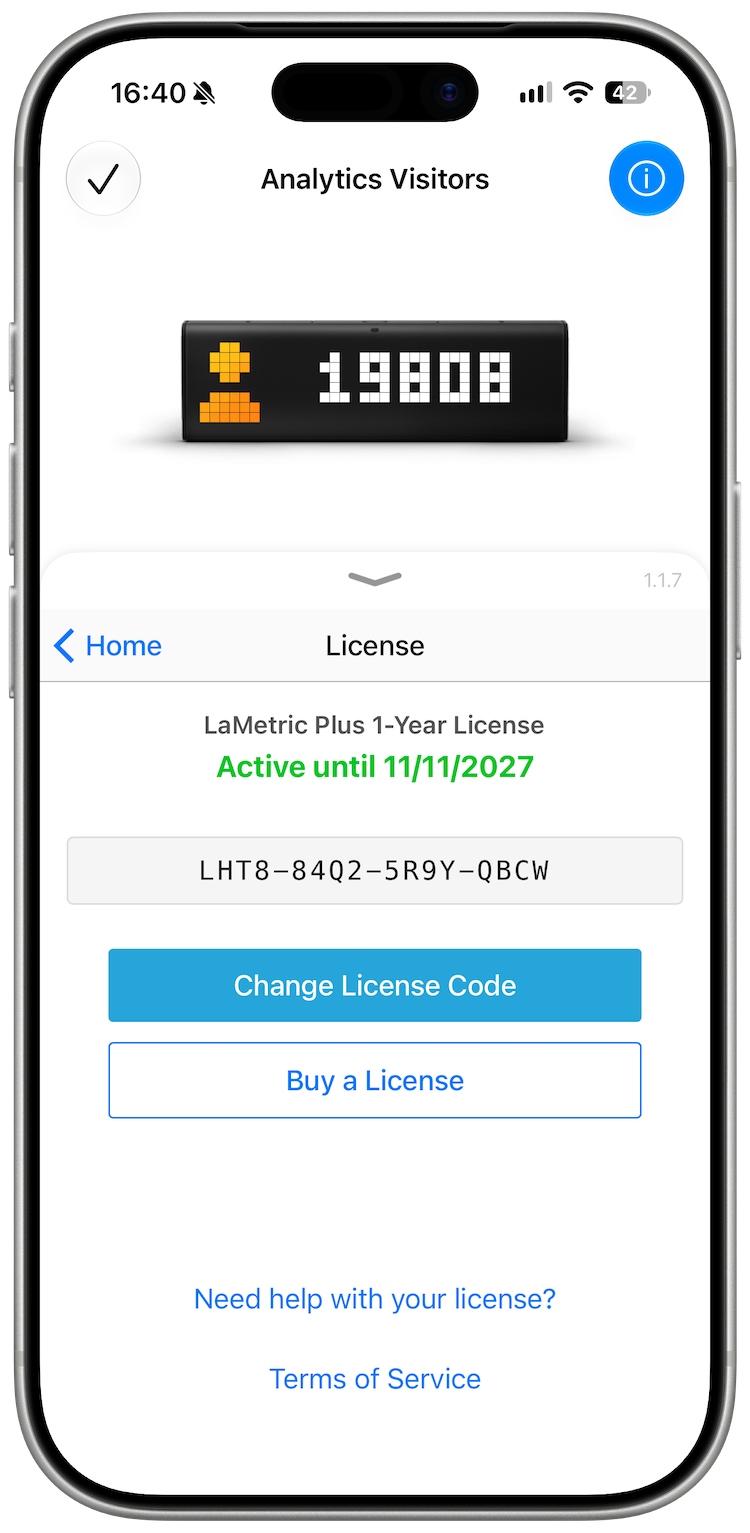
Successfully restored license in another Plus App
Restoring or redeeming the same code again does not change your existing license expiration date.
Important: LaMetric Plus only includes selected premium apps. Not every app available in the LaMetric app catalog is included.
3. How to Renew Your LaMetric Plus License
LaMetric Plus is an annual license with automatic annual billing renewal.
When your annual renewal payment is successful, a new license code will be sent to your purchase email address.
You must activate the new license code manually to continue using LaMetric Plus. Completing the renewal payment alone does not automatically activate the renewed license in your apps.
Activate your renewed license
Find the email containing your new LaMetric Plus license code.
Open the License settings in any supported Plus App.
Enter your new license code.
Select Redeem License Code.
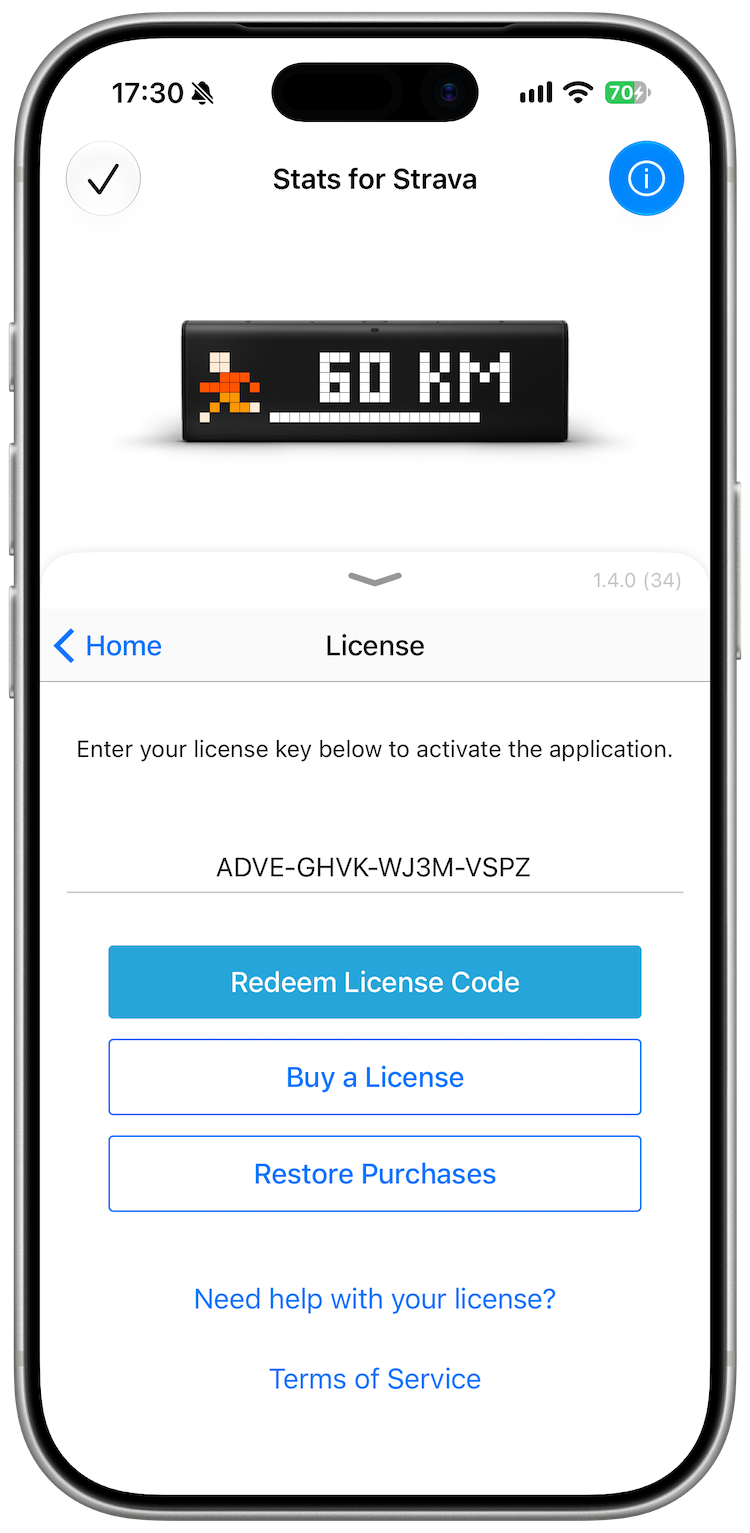
Renewed License Code
Once the new code is successfully validated, your renewed license is associated with your LaMetric account.
Other Plus Apps connected to the same account may require you to select Restore Purchase or redeem the new code to recognize the renewed license.
Your new license period is calculated from the renewal purchase date, not from the date you enter the new code.
Tip: Activate your new license code promptly to avoid interruptions in access to premium features.
4. Important Information About Your License
License validity
Each LaMetric Plus license is valid for one year from its purchase date.
Activating the license later does not extend its expiration date. Redeeming the same code again or restoring your license also does not restart or extend the license period.
License and LaMetric account
Your license becomes linked to your LaMetric account when you activate it for the first time.
It can be used across supported apps and compatible devices connected to that account.
If you need to transfer your license to another LaMetric account, contact LaMetric Support. Transfers are subject to verification and approval.
Reinstalling apps or resetting devices
Reinstalling a supported Plus App or resetting your device does not create a new license period.
After reinstalling an app or resetting your device, you may need to restore your license using Restore Purchase or enter your existing license code using Redeem License Code.
Your existing expiration date remains unchanged.
Automatic renewal and cancellation
Annual renewal payments are processed automatically unless automatic renewal is cancelled.
Each successful renewal provides a new license code. You must manually activate that code to continue using premium features.
You can cancel automatic renewal through your customer account in the LaMetric online store or by contacting LaMetric Support.
Cancelling automatic renewal prevents future renewal charges but does not immediately deactivate your current license. You can continue using premium features until the current license expires.
After your license expires
When your license expires, premium features in supported Plus Apps become unavailable until a valid new license is activated.
Your LaMetric account, registered devices, and features that don't require LaMetric Plus remain available.
5. Troubleshooting
I haven't received my license code
License codes are normally delivered automatically within a few minutes after a successful purchase or renewal.
Check your spam or junk folder.
Verify the email address used during checkout.
Check your order confirmation to make sure your payment was successful.
If you're renewing, look for a new email containing your new license code.
If you still can't find your code, contact LaMetric Support and provide your order number and purchase email address.
My license code is invalid
If your app displays an invalid license code error:
Make sure you've entered the complete code correctly.
Remove any extra spaces before or after the code.
Check that you're using a LaMetric Plus license code, not a code purchased for a different individual app.
Make sure you're entering the code in a supported Plus App.
Check that your LaMetric device is connected to the internet.
If the code is still rejected, contact LaMetric Support and include the exact error message.
My license code has already been redeemed
A LaMetric Plus license becomes linked to a LaMetric account when it is activated for the first time.
You can reuse the same license code in supported Plus Apps and on compatible devices connected to that account.
If an app doesn't recognize your existing license:
Confirm that your device is connected to the correct LaMetric account.
Open Settings → License in the affected app.
Select Restore Purchase.
If the license isn't restored, enter your existing code and select Redeem License Code.
If your code was activated under a different LaMetric account, it cannot be used with your current account without a license transfer.
Contact LaMetric Support if you need to request a transfer or believe the error is incorrect.
My license is active, but another app asks me to buy a license
You don't need to purchase another license for each supported Plus App.
If another app doesn't recognize your existing license:
Make sure the device is connected to the same LaMetric account associated with your license.
Open the app's Settings → License.
Select Restore Purchase.
If necessary, enter your existing license code and select Redeem License Code.
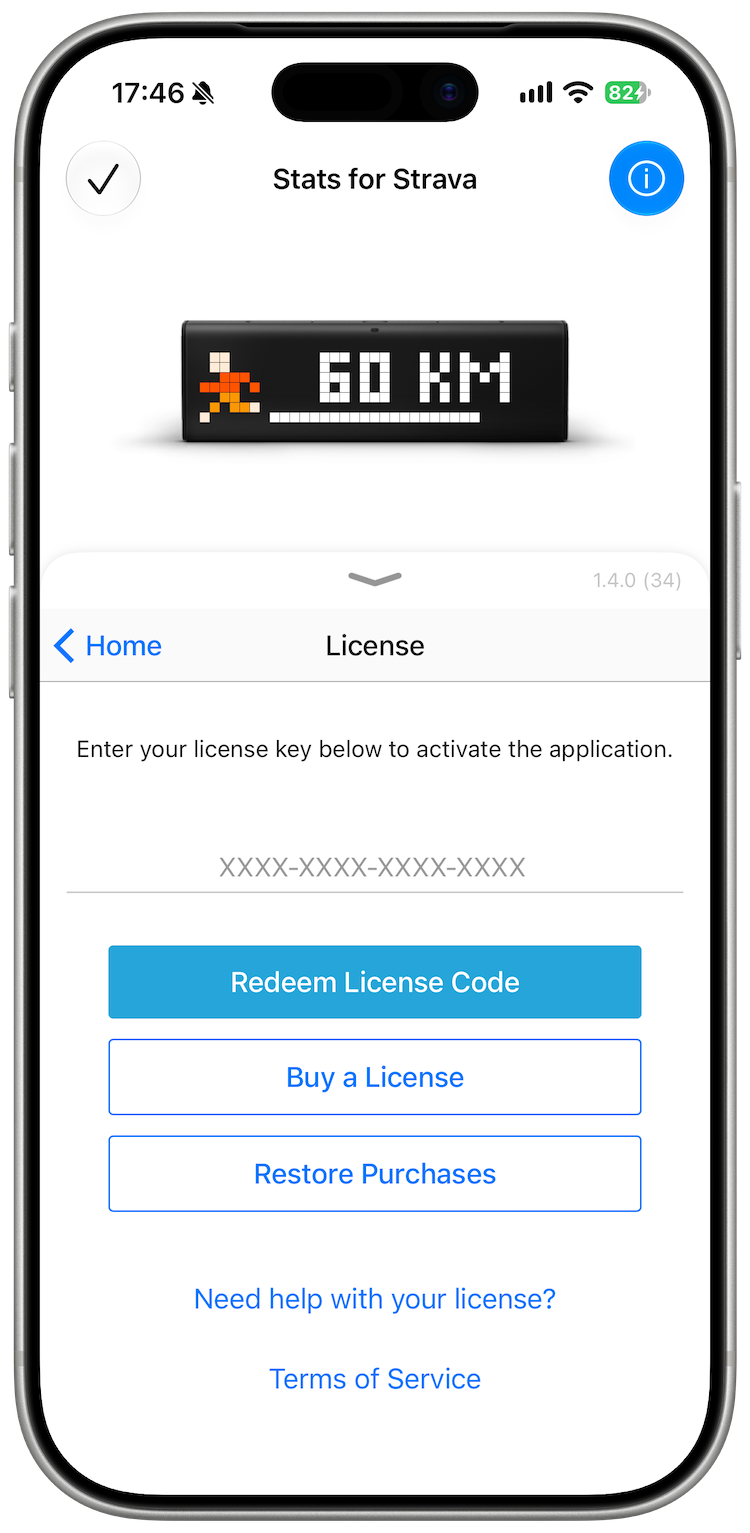
Restore Purchase and Redeem License Code options
If neither option works, contact LaMetric Support.
My license is active, but premium features are unavailable
If your license is active but a supported app isn't working as expected:
Make sure the device is connected to the LaMetric account associated with your license.
Check that your license hasn't expired.
Confirm that the app is included in LaMetric Plus.
Open Settings → License and try Restore Purchase. If necessary, redeem your existing license code.
Make sure your LaMetric device is connected to the internet.
Restart the app or device and try again.
Check whether the app requires additional setup, such as connecting an external service account.
If the issue persists, contact LaMetric Support.
My license has expired
If your license has expired, you'll need a new valid license code to continue using premium features.
If automatic renewal is enabled:
Check whether your annual renewal payment was successful.
Find the email containing your new license code.
Open License settings in any supported Plus App.
Enter the new code and select Redeem License Code.
If automatic renewal was cancelled:
Open the License settings in a supported Plus App.
Select Buy a License.
Complete your purchase.
Activate the new license code received by email.
I've paid for renewal, but my license still shows as expired
A successful renewal payment does not automatically activate your new license code.
Check your email for the new code issued after renewal.
Open License settings in any supported Plus App.
Enter the new code and select Redeem License Code.
In other supported Plus Apps, select Restore Purchase or redeem the new code if the renewed license isn't recognized.
If the license still appears expired, contact LaMetric Support with your order details and the error message.
I changed my LaMetric account
Your license is associated with the LaMetric account used during its first successful activation.
If you've switched to a different account, your existing license won't automatically transfer.
To request a transfer, contact LaMetric Support with your order details. License transfers require verification and approval.
6. Still Need Help?
If you've followed the instructions above and still can't activate or use your LaMetric Plus license, our support team is here to help.
Contact LaMetric Support and include:
Your order number.
The email address used during purchase.
The name of the Plus App you're using.
Your LaMetric device model.
A description of the issue and any error message displayed.
If possible, attach a screenshot of the error to help us investigate.
For your security, never share your LaMetric account password.
For additional information, see the LaMetric Plus License Terms.